- Automating Workflows with n8n and Local LLMs
- Generating Images with ComfyUI and Z Image Turbo
- Local LLM Coding with VSCode and Qwen3-Coder
- Running and Serving LLMs with LM Studio
- Running LLMs on PyTorch with AMD ROCm™ Software
- Build a GitHub-to-Slack Development Digest with Agent Canvas
- Building Custom GPU Kernels with PyTorch and AMD ROCm™
- Building Your First Agent with GAIA
- Chatting with LLMs in Open WebUI
- Clustering Four Ryzen™ AI Halos with RCCL
- Clustering Four Ryzen™ AI Halos with RPC
- Clustering Two Ryzen™ AI Halos with RCCL
- Clustering Two Ryzen™ AI Halos with RPC
- Fine-Tuning LLMs with LLaMA Factory
- Fine-Tuning LLMs with PyTorch and AMD ROCm™ Software
- Fine-Tuning LLMs with Unsloth
- Getting Started with Lemonade
- Getting Started with Ollama
- Getting Started with OpenHands and a Local LLM
- Getting Started with vLLM
- Local Computer Vision with AMD Ryzen™ AI NPU
- Real-Time Speech-to-Speech Translation
- Remote Development with AMD Sync
- Running DeepSeek V4 Flash with ds4
- Running Hermes Agent Locally with Lemonade Server
- Running OpenClaw Locally with Lemonade Server
| ds4 | Latest |
| ds4 | Latest |
- Overview
- What You’ll Learn
- Setting the Memory Configuration
- Install AMD Software: Adrenalin Edition
- Advanced: increasing GPU memory (optional)
- Installing Software Prerequisites
- Available Quantizations
- Installing ai-toolbox-cockpit
- Step 1: Creating the Toolbox
- Step 2: Downloading the Model
- Step 3: Starting the Server
- Connecting a Web UI
- Connecting a Coding Agent
- Next Steps
Running DeepSeek V4 Flash with ds4
Deploy DeepSeek V4 Flash locally using the ds4 inference engine and manage models interactively with ds4-cockpit.
Overview
DeepSeek V4 Flash is the efficiency-focused variant of the DeepSeek V4 family — a 284 billion parameter Mixture of Experts model with 13 billion active parameters. According to DeepSeek’s technical report, it scores 79% on SWE-bench Verified and 91.6% on LiveCodeBench.
ds4 (Dwarf Star 4) is a dedicated inference engine built specifically for this model architecture. Rather than a general-purpose runtime, ds4 targets the DeepSeek V4 family directly with architecture-specific kernel optimizations for AMD ROCm™ software. It is currently one of the best-performing implementations of DeepSeek V4 Flash on Strix Halo.
This tutorial shows how to use ai-toolbox-cockpit, a terminal UI, to set up ds4, download model weights, and start serving DeepSeek V4 Flash locally on the AMD Ryzen™ AI Halo Developer Platform.
What You’ll Learn
- How to install and launch the
ai-toolbox-cockpitterminal UI - How to create the ds4 ROCm toolbox container
- Downloading the recommended quantization for a single Halo node
- Starting the ds4 inference server and exposing an OpenAI-compatible endpoint
- Connecting a Web UI or coding agent to the local server
Setting the Memory Configuration
Install AMD Software: Adrenalin Edition
Download and install the latest AMD Software: Adrenalin Edition from amd.com/en/products/software/adrenalin.html.
if command -v rocminfo >/dev/null 2>&1 && rocminfo | grep -q gfx; then echo "OK: GPU visible to ROCm"else echo "GPU not visible via rocminfo" >&2 exit 1fiAdvanced: increasing GPU memory (optional)
You may need to increase the memory allocated to the GPU to run certain larger models or longer contexts. These devices use unified memory — the GPU shares system RAM — so this means letting the GPU claim more of that shared pool. Leave roughly 20% of system RAM for the operating system. This step is optional; the default allocation is enough for most workloads.
On Windows, adjust the memory in AMD Software: Adrenalin Edition: open it and navigate to Performance → Tuning → AMD Variable Graphics Memory. Set the value you need and reboot for the change to take effect.
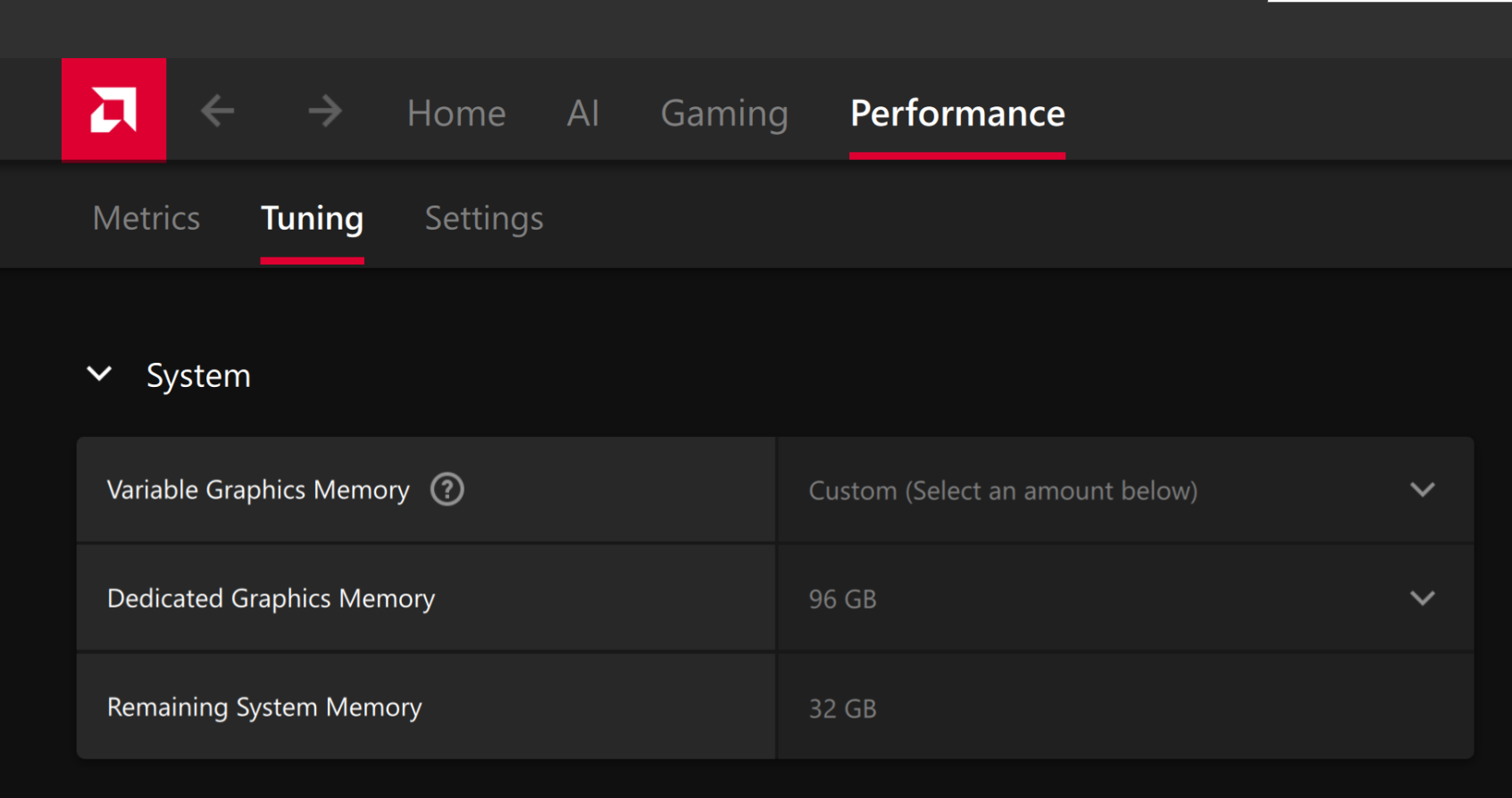
Backup method (BIOS). If your system does not show the Variable Graphics Memory option in Adrenalin (some OEM systems hide it), set the UMA Frame Buffer Size in the system BIOS/UEFI instead: reboot, enter setup (usually Del, F2, or Esc), find UMA Frame Buffer Size — also labeled Integrated Graphics or dedicated GPU memory, often under Advanced or AMD CBS → NBIO Common Options — set it to the size you need, save, and reboot. Menu names vary by vendor, and some BIOS do not expose it either.
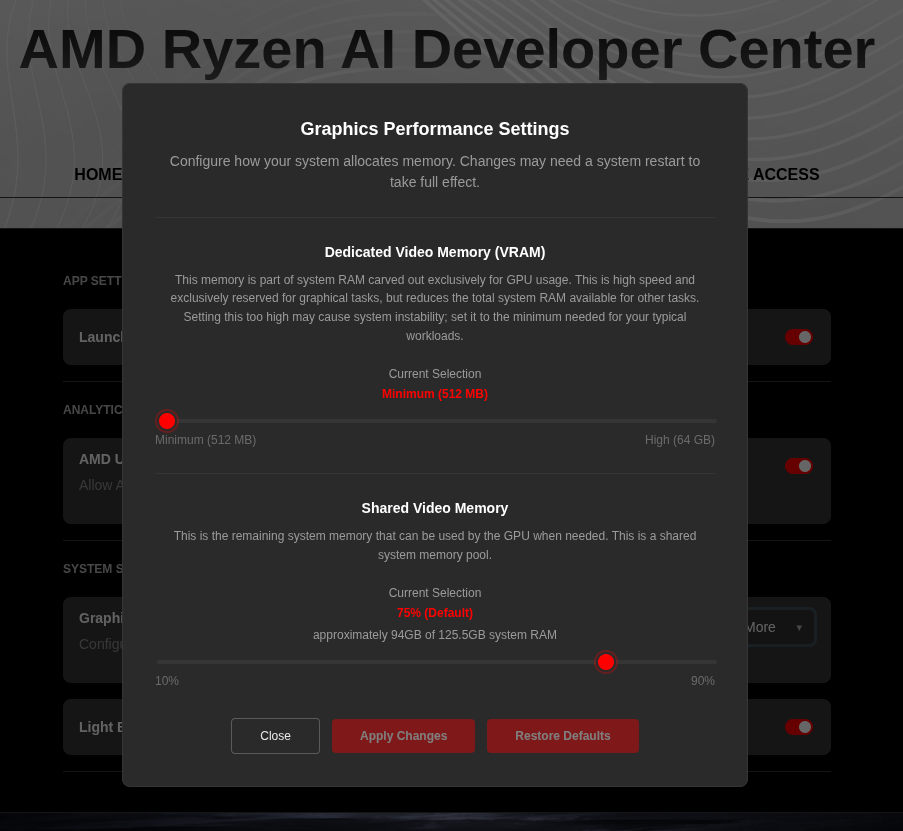
On the AMD Ryzen™ AI Halo, adjust the shared memory in the pre-installed AMD Ryzen™ AI Developer Center: open it, go to the Settings tab, and under Graphics Performance Settings increase the Shared Video Memory slider. Click Apply Changes and reboot for the change to take effect.
On Linux, raise the shared GTT/TTM pool so the GPU can map more system memory. AMD recommends setting the minimum dedicated VRAM in the BIOS (0.5 GB) so the maximum is available as shared memory.
- Install the
amd-debug-toolshelper:
sudo apt install pipxpipx ensurepathpipx install amd-debug-tools- Query the current shared-memory limit:
amd-ttm- Raise it (value in GB — pick a size that leaves headroom for the OS):
amd-ttm --set <NUM>- Reboot for the change to take effect.
Installing Software Prerequisites
System requirements for this configuration (single-node IQ2_XXS at 126k context):
- A Strix Halo system with at least 128 GB of unified memory.
- BIOS dedicated VRAM (UMA frame buffer) set to the minimum, so the shared memory pool can be as large as possible.
- The GPU shared-memory pool set to at least 110 GB: run
amd-ttm --set 110(see the memory configuration step above) and reboot. Lower values can fail with out-of-memory when the model loads at a 126k context. If your system has less memory available, lower the Context value in Server Mode instead.
ai-toolbox-cockpit uses container toolboxes to run the ds4 engine. Install podman, distrobox, and pipx:
sudo apt updatesudo apt install -y podman distrobox pipxAvailable Quantizations
The ds4 author provides several quantized versions of DeepSeek V4 Flash in GGUF format. All models below use importance matrix (imatrix) calibration, which preserves higher precision for the parts of the model that matter most for coding and reasoning tasks.
| Quantization | Size | Description |
|---|---|---|
| IQ2_XXS imatrix | ~80.8 GB | Recommended for a single 128 GB node |
| Hybrid Q2/Q4 imatrix | ~97 GB | Keeps layers 37–42 at Q4 precision for better accuracy. Fits in 128 GB but leaves less room for context |
| Q4 imatrix | ~153 GB | Higher quality. Requires two Halo nodes via multi-node clustering |
| MTP Speculative Decoding | ~3.6 GB | Optional add-on for speculative decoding to improve generation speed |
The IQ2_XXS imatrix model is a good starting point. It fits comfortably on a single node and leaves enough memory for a reasonable context window.
Installing ai-toolbox-cockpit
ai-toolbox-cockpit is a light terminal UI to make installing various AI backends easy. We will use it to handle creating our ds4 container, downloading model weights, and starting servers. Install it with pipx:
pipx install git+https://github.com/kyuz0/ai-toolbox-cockpit.gitLaunch the cockpit:
ai-toolbox-cockpitStep 1: Creating the Toolbox
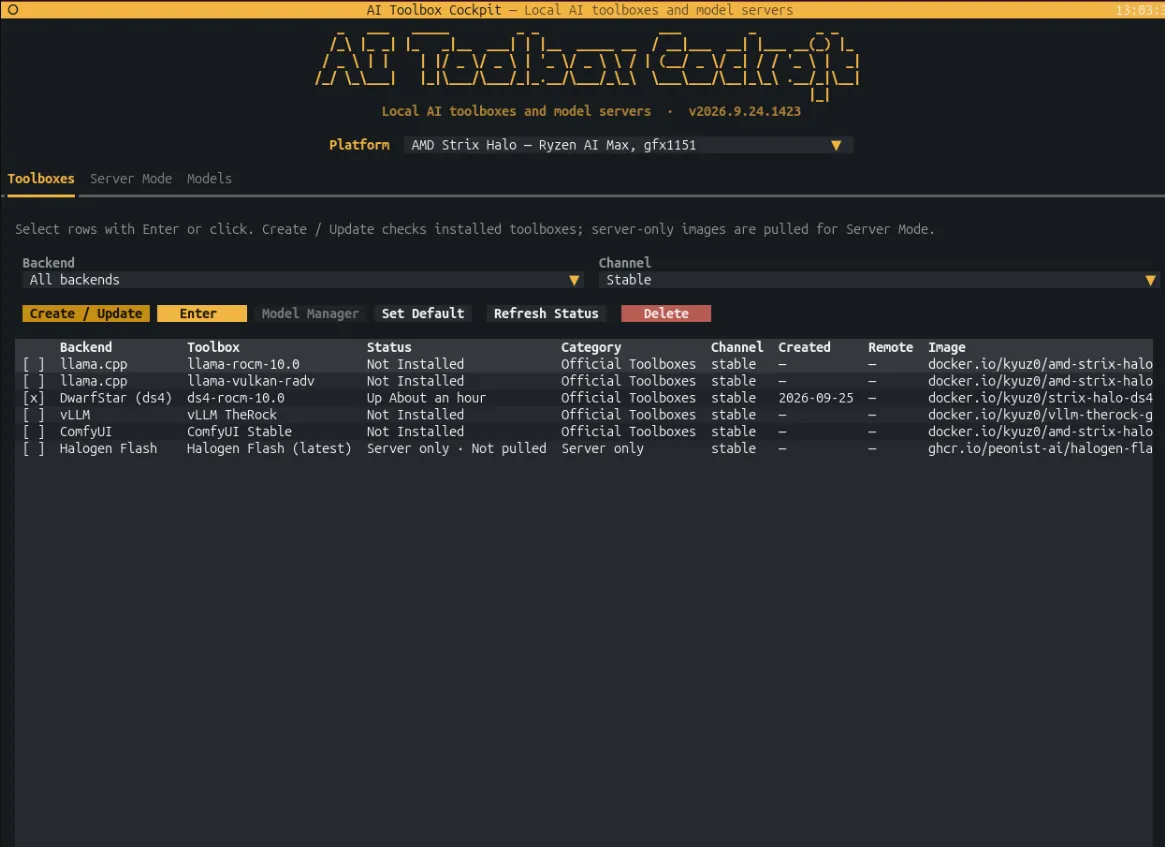
In the Interactive Toolboxes tab, select the latest available/stable toolbox for ds4 (e.g. ds4-rocm-10.0) and click Create/Update. This pulls the container image and creates the toolbox environment.
Step 2: Downloading the Model
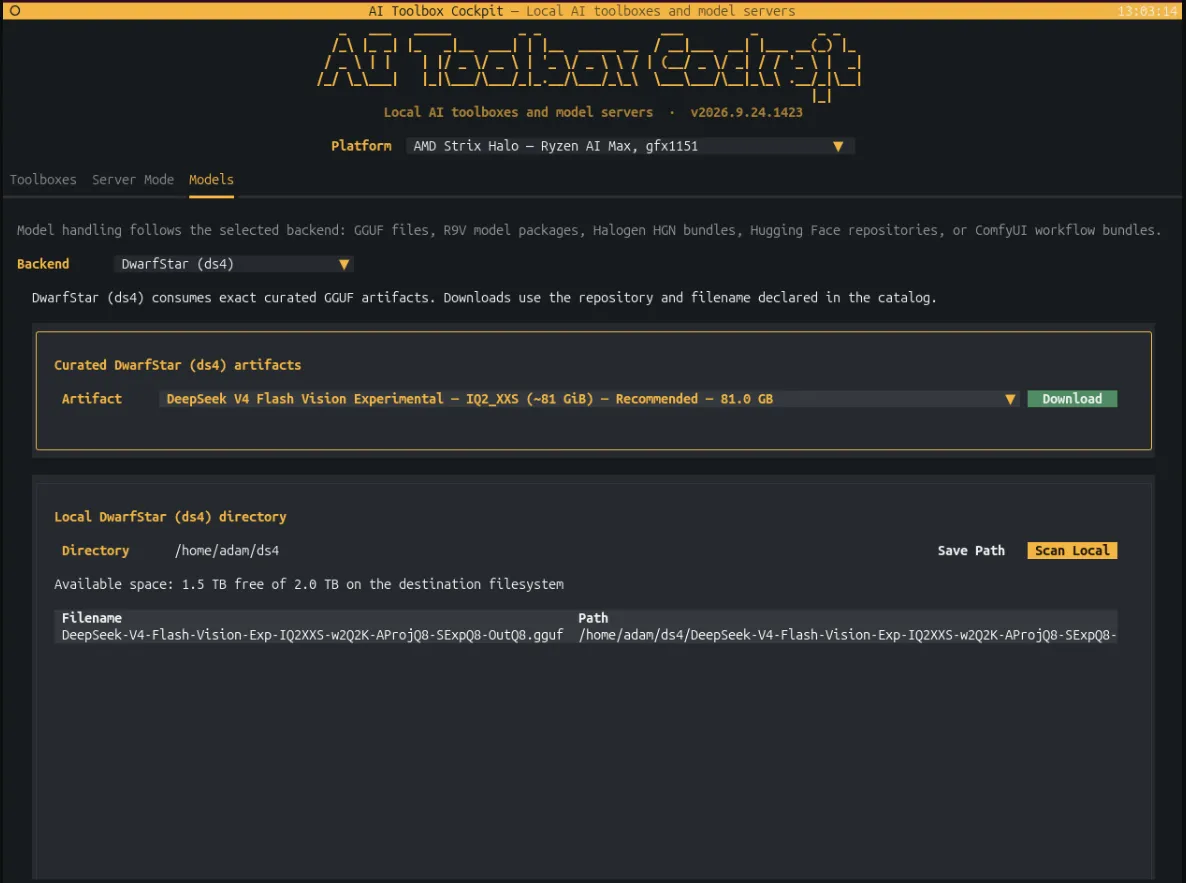
Go to the Models tab. First, select the backend (ds4). Then, select the IQ2_XXS imatrix (~80.8 GB) from the dropdown and click Download. The model files will be saved to ~/ds4 by default (you can change the storage path).
Step 3: Starting the Server
Go to the Server Mode tab. Select the downloaded model and the toolbox, then configure the context size, host, and port. When ready, click Start ds4-server.
KV Disk Cache (optional). Turning on KV Disk Cache offloads the KV cache to disk (at Host Cache Dir, default
~/.cache/ds4-kv) so repeated system prompts are restored from SSD instead of being recomputed. It’s a performance optimization for coding-agent workflows with long, repeated prompts, and is not required to run the server.
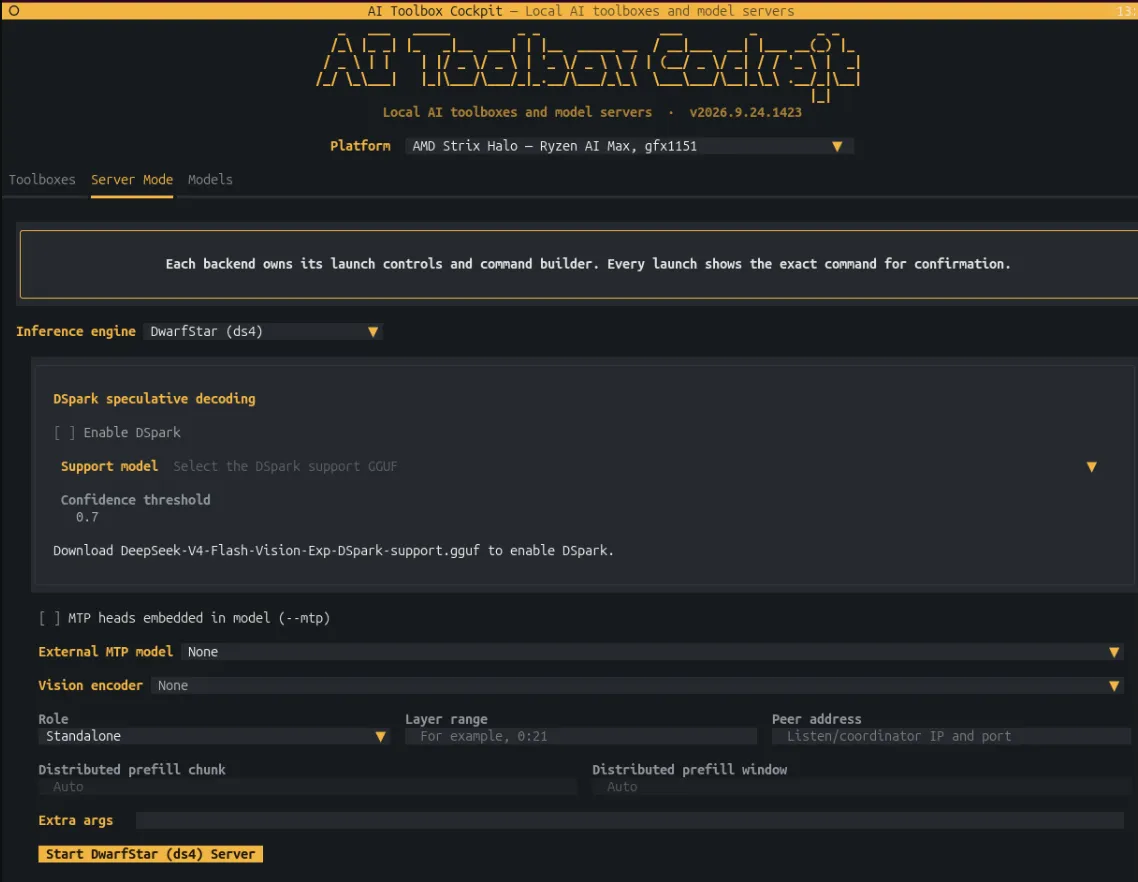
The server will start and listen on port 8000, exposing an OpenAI-compatible API endpoint at http://localhost:8000/v1.
Quick test:
curl http://127.0.0.1:8000/v1/chat/completions \ -H 'Content-Type: application/json' \ -d '{ "model": "deepseek-v4-flash", "messages": [{"role": "user", "content": "Hello!"}], "stream": false }'Connecting a Web UI
You can connect any chat interface that supports the OpenAI API format. For example, to use HuggingFace ChatUI:
docker run --network=host \ -e PORT=3000 \ -e OPENAI_BASE_URL=http://localhost:8000/v1 \ -e OPENAI_API_KEY=dummy \ -v chat-ui-data:/data \ ghcr.io/huggingface/chat-ui-dbOpen http://localhost:3000 in your browser to start chatting.
Connecting a Coding Agent
The ds4 server exposes both OpenAI and Anthropic-compatible endpoints, so most coding agents can connect to it directly. For example, to add it to the pi coding agent, add the following block to ~/.pi/agent/models.json:
"ds4": { "name": "ds4.c local", "baseUrl": "http://localhost:8000/v1", "api": "openai-completions", "apiKey": "dsv4-local", "compat": { "supportsStore": false, "supportsDeveloperRole": false, "supportsReasoningEffort": true, "supportsUsageInStreaming": true, "maxTokensField": "max_tokens", "supportsStrictMode": false, "thinkingFormat": "deepseek", "requiresReasoningContentOnAssistantMessages": true }, "models": [ { "id": "deepseek-v4-flash", "name": "DeepSeek V4 Flash (ds4.c local)", "reasoning": true, "thinkingLevelMap": { "off": null, "minimal": "low", "low": "low", "medium": "medium", "high": "high", "xhigh": "xhigh" }, "input": ["text"], "contextWindow": 131072, "maxTokens": 65536, "cost": { "input": 0, "output": 0, "cacheRead": 0, "cacheWrite": 0 } } ]}Next Steps
- Multi-node clustering: If you have two Halo devices, ds4 supports distributing the Q4 model (~153 GB) across both machines via pipeline parallelism. See the ds4-toolbox documentation for setup instructions.
- Speculative decoding (MTP): Download the MTP weights (~3.6 GB) and pass
--mtpto the server for faster generation speed. - KV cache disk offloading: For coding agent workflows, enable
--kv-disk-dirso that repeated system prompts are restored from SSD instead of being recomputed each time.
For more information, see the ds4 repository and the ds4-cockpit toolbox.
Need help with this playbook?
Run into an issue or have a question? Open a GitHub issue and our team will take a look.