- Automating Workflows with n8n and Local LLMs
- Generating Images with ComfyUI and Z Image Turbo
- Local LLM Coding with VSCode and Qwen3-Coder
- Running and Serving LLMs with LM Studio
- Running LLMs on PyTorch with AMD ROCm™ Software
- Build a GitHub-to-Slack Development Digest with Agent Canvas
- Building Custom GPU Kernels with PyTorch and AMD ROCm™
- Building Your First Agent with GAIA
- Chatting with LLMs in Open WebUI
- Clustering Four Ryzen™ AI Halos with RCCL
- Clustering Four Ryzen™ AI Halos with RPC
- Clustering Two Ryzen™ AI Halos with RCCL
- Clustering Two Ryzen™ AI Halos with RPC
- Fine-Tuning LLMs with LLaMA Factory
- Fine-Tuning LLMs with PyTorch and AMD ROCm™ Software
- Fine-Tuning LLMs with Unsloth
- Getting Started with Lemonade
- Getting Started with Ollama
- Getting Started with OpenHands and a Local LLM
- Getting Started with vLLM
- Local Computer Vision with AMD Ryzen™ AI NPU
- Real-Time Speech-to-Speech Translation
- Remote Development with AMD Sync
- Running DeepSeek V4 Flash with ds4
- Running Hermes Agent Locally with Lemonade Server
- Running OpenClaw Locally with Lemonade Server
| llama.cpp | Latest |
| AMD GPU Driver | 26.8.1 (from Ryzen AI Developer Center) |
| llama.cpp | Latest |
| llama.cpp | Latest |
| AMD GPU Driver | Adrenalin 26.9.1 |
| llama.cpp | Latest |
Clustering Two Ryzen™ AI Halos with RPC
Set up distributed inference using RPC server across two Ryzen™ AI Halo devices with llama.cpp to run 350B+ models
Overview
Your Ryzen™ AI Halo is already capable of running large language models locally. Clustering takes this further by combining the GPU memory of multiple systems over a local network, giving you access to even larger models with stronger reasoning, better code generation, and deeper multilingual understanding, all entirely on your own hardware.
This playbook teaches you how to cluster two Ryzen AI Halo systems using llama.cpp’s RPC engine and run GLM 4.7, a 358B parameter model, across both machines with AMD ROCm™ acceleration.
What You’ll Learn
- How to extend VRAM allocation on Ryzen AI Halo systems
- Installing llama.cpp with ROCm and RPC support
- Configuring an RPC worker and launching distributed inference across two nodes
- Running a 358B parameter model across two networked Ryzen AI Halo systems
Setting the Memory Configuration
On Windows, to run larger models that require higher memory, we need to use the AMD Variable Graphics Memory (iGPU VRAM) allocation.
This can be done by opening AMD Software: Adrenalin Edition control panel and navigating to: Performance > Tuning > AMD Variable Graphics Memory. Set the value to 96 GB. Please reboot the system for the changes to take effect.
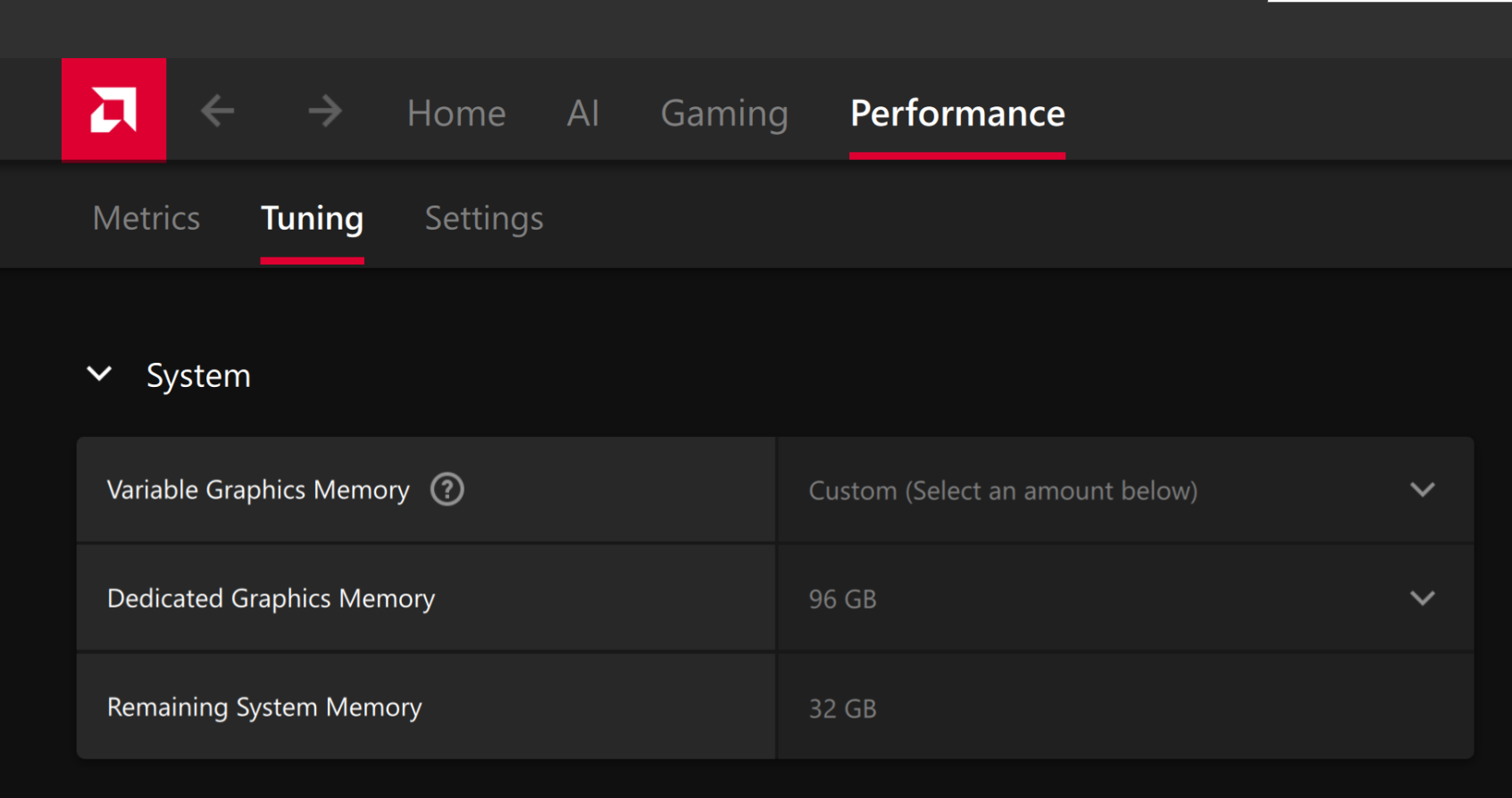
On Linux, ROCm utilizes a shared system memory pool, and this pool is configured by default to half the system memory.
This amount can be increased by changing the kernel’s Translation Table Manager (TTM) page setting, with the following instructions. AMD recommends setting the minimum dedicated VRAM in the BIOS (0.5 GB).
- Install the pipx utility and add the path for pipx installed wheels into the system search path.
sudo apt install pipxpipx ensurepath- Install the amd-debug-tools wheel from PyPI.
pipx install amd-debug-tools- Run the amd-ttm tool to query the current settings for shared memory.
amd-ttm- Reconfigure shared memory settings to 120 GB:
amd-ttm --set 120- Reboot the system for changes to take effect.
Check for Software Updates
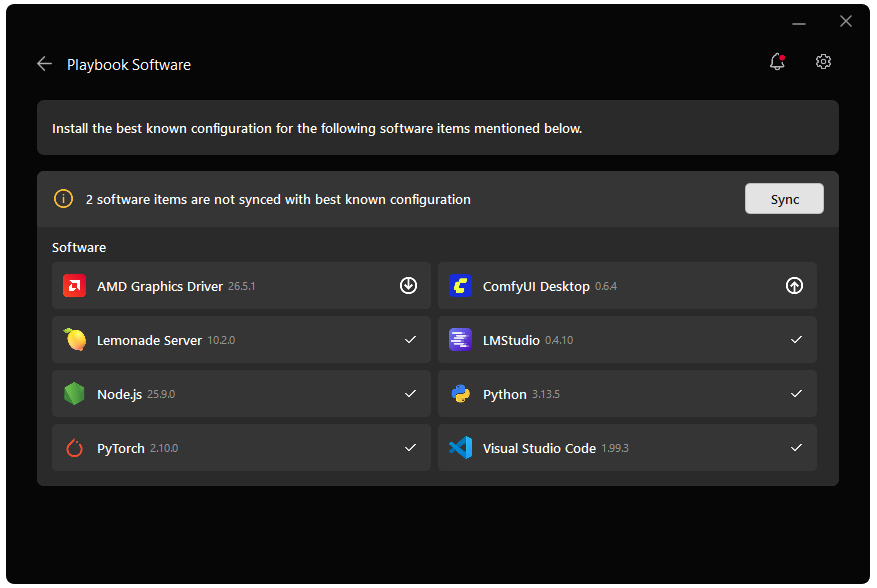
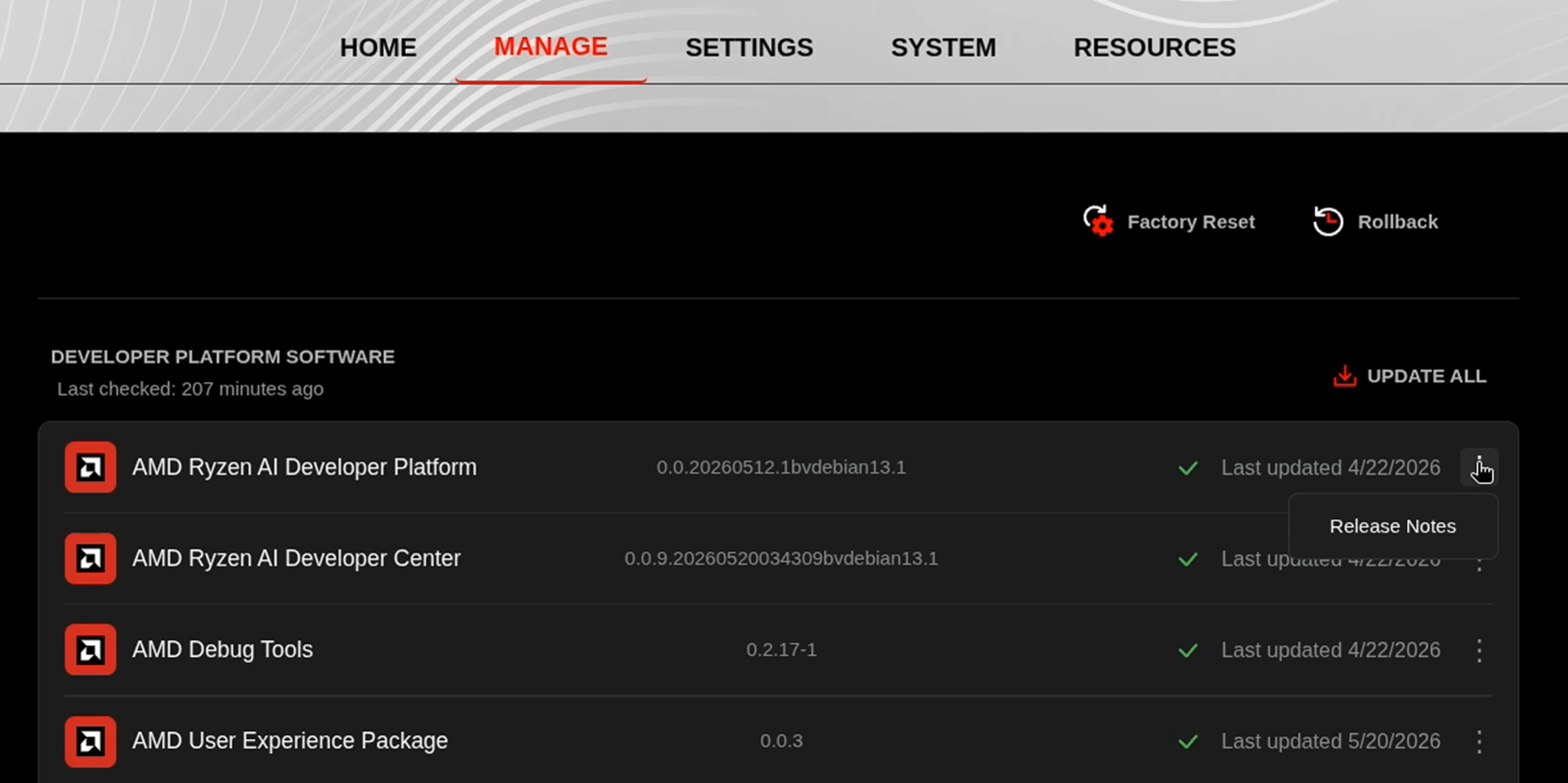
Before starting, ensure your Ryzen AI Halo has the latest software installed. Open the AMD Ryzen™ AI Developer Center and check for available updates, both to the app itself and additional software.
Go to the Updates tab. If updates are available, install them and reboot before continuing.
Go to the Manage tab. If updates are available, install them and reboot before continuing.
Prerequisites
Hardware
This playbook requires two Ryzen AI Halo units and one Ethernet switch, connected in a star topology with each unit wired directly to the switch.
| Component | Quantity | Description |
|---|---|---|
| Ryzen AI Halo | 2 | Compute nodes that form the cluster |
| 10Gbps Ethernet switch | 1 | Central switch to allow multi node Ryzen AI Halo communication (at least 2 ports) |
| Ethernet cable | 2 | Connects each Halo unit to the switch (Cat 7 or higher recommended) |
Software
AMD GPU Driver
Update to the latest AMD GPU driver using AMD Software: Adrenalin Edition™.
- Open
AMD Software: Adrenalin Editionfrom your Start menu or system tray. - Navigate to Driver and Software, click Manage Updates.
- If an update is available, follow the prompts to download and install.
AMD GPU Driver
Install the AMD GPU Driver (amdgpu) using the Radeon Software for Linux (RSL) flow. For instructions for your distribution, see the ROCm installation at: Install the kernel driver.
For the driver itself, see Linux® Drivers for AMD Radeon™
Please install:
- Git
- Python
- Visual Studio Build Tools with the Desktop Development with C++ workload
- AMD HIP SDK
sudo apt install git cmake python3 python3-pipPhysical Hardware Setup
Connect each Ryzen AI Halo unit to the Ethernet switch using a Cat 7 (or higher) cable. This establishes the 10Gbps link used for high-speed communication between the nodes.
1. Determine Network Interfaces
On each machine, find the name of its network interface and note it down (it will be referred to below as IFNAME). Run:
ip route get 1.1.1.1 | grep -oP 'dev \K\S+'This prints the interface name directly, for example:
enp191s02. Verify Network Link Speeds
Confirm the link is active and running at full speed by checking the speed of your interface:
sudo ethtool <IFNAME> | grep SpeedYou should see a speed of 10000Mb/s:
Speed: 10000Mb/sVerify Network Link Speed
On each machine, check the link speed of your network interfaces:
Get-NetAdapter | Select-Object Name, Status, LinkSpeedYour Ethernet interface should be Up and running at 10 Gbps:
Name Status LinkSpeed---- ------ ---------Ethernet Up 10 GbpsInstalling llama.cpp
Two installation options are available:
- Option 1: Lemonade SDK (Recommended) - pre-built binaries, fastest setup
- Option 2: Manual Source Build - build from source with full control over build flags
Option 1: Lemonade SDK (Recommended)
The Lemonade SDK provides nightly builds of llama.cpp with AMD ROCm 7 acceleration, targeting GPUs such as gfx1151 (Strix Halo / Ryzen AI Max+ 395) and other recent Radeon architectures.
Step 1: Download the Pre-Built Binaries
Navigate to the latest release page and download the archive matching your platform and GPU target:
https://github.com/lemonade-sdk/llamacpp-rocm/releases/latest/
Download the file named llama-bxxxx-windows-rocm-gfx1151-x64.zip (where xxxx is the build number).
Step 2: Extract the Binaries
Unzip the downloaded archive:
llama-bxxxx-windows-rocm-gfx1151-x64.zipThis directory now contains ROCm-enabled builds of llama-cli.exe, llama-server.exe, and rpc-server.exe, precompiled for your Ryzen AI Halo system.
Step 3: Verify GPU Detection
.\llama-cli.exe --list-devicesExpected output:
ggml_cuda_init: found 1 ROCm devices: Device 0: AMD Radeon(TM) Graphics, gfx1151 (0x1151), VMM: no, Wave Size: 32Available devices: ROCm0: AMD Radeon(TM) Graphics (110511 MiB, 110357 MiB free)Step 1: Download the Pre-Built Binaries
Navigate to the latest release page and download the archive matching your platform and GPU target:
https://github.com/lemonade-sdk/llamacpp-rocm/releases/latest/
Download the file named llama-bxxxx-ubuntu-rocm-gfx1151-x64.zip (where xxxx is the build number).
Step 2: Extract and Prepare the Binaries
unzip llama-bxxxx-ubuntu-rocm-gfx1151-x64.zipcd llama-bxxxx-ubuntu-rocm-gfx1151-x64chmod +x llama-cli llama-server rpc-serverThis directory now contains ROCm-enabled builds of llama-cli, llama-server, and rpc-server, precompiled for your Ryzen AI Halo system.
Step 3: Verify GPU Detection
./llama-cli --list-devicesExpected output:
ggml_cuda_init: found 1 ROCm devices: Device 0: AMD Radeon Graphics, gfx1151 (0x1151), VMM: no, Wave Size: 32Available devices:ggml_backend_cuda_get_available_uma_memory: final available_memory_kb: 127697544 ROCm0: AMD Radeon Graphics (120000 MiB, 124704 MiB free)With llama.cpp prepared on each node, proceed to Downloading the Model.
Option 2: Manual Source Build
Step 1: Build llama.cpp
Open the x64 Native Tools Command Prompt (installed with Visual Studio Build Tools) and clone the repository:
git clone https://github.com/ggml-org/llama.cppcd llama.cppAdd HIP to your path and build with ROCm and RPC support:
set PATH=%HIP_PATH%\bin;%PATH%cmake -S . -B rocm -G Ninja -DGGML_HIP=ON -DGGML_RPC=ON -DGPU_TARGETS=gfx1151 -DCMAKE_C_COMPILER=clang -DCMAKE_CXX_COMPILER=clang++ -DCMAKE_BUILD_TYPE=Releasecmake --build rocm --config Release| Build Flag | Purpose |
|---|---|
-DGGML_HIP=ON | Enables the ROCm/HIP software stack |
-DGGML_RPC=ON | Enables RPC for distributed inference |
-DGPU_TARGETS=gfx1151 | Targets the Ryzen AI Halo GPU (Radeon 8060s) |
-G Ninja | Uses the Ninja build system |
Step 2: Verify GPU Detection
cd rocm\bin.\llama-cli.exe --list-devicesExpected output:
ggml_cuda_init: found 1 ROCm devices: Device 0: AMD Radeon(TM) Graphics, gfx1151 (0x1151), VMM: no, Wave Size: 32Available devices: ROCm0: AMD Radeon(TM) Graphics (110511 MiB, 110357 MiB free)Step 3: Add HIP to Your User Path
The build step above set %HIP_PATH%\bin for the current session only. To make the HIP libraries available in any terminal (not just the x64 Native Tools Command Prompt), add it to your user PATH permanently:
powershell -Command "[System.Environment]::SetEnvironmentVariable('Path', [System.Environment]::GetEnvironmentVariable('Path', 'User') + ';%HIP_PATH%\bin', 'User')"With llama.cpp prepared on each node, proceed to Downloading the Model.
Step 1: Build llama.cpp
Clone the repository:
git clone https://github.com/ggml-org/llama.cppcd llama.cppBuild with ROCm and RPC support:
cmake -B rocm -DGGML_HIP=ON -DGGML_RPC=ON -DAMDGPU_TARGETS="gfx1151"cmake --build rocm --config Release -j$(nproc)| Build Flag | Purpose |
|---|---|
-DGGML_HIP=ON | Enables the ROCm software stack |
-DGGML_RPC=ON | Enables RPC for distributed inference |
-DAMDGPU_TARGETS="gfx1151" | Targets the Ryzen AI Halo GPU (Radeon 8060s) |
For more build options, refer to the llama.cpp build documentation.
Step 2: Verify GPU Detection
cd rocm/bin./llama-cli --list-devicesExpected output:
ggml_cuda_init: found 1 ROCm devices: Device 0: AMD Radeon Graphics, gfx1151 (0x1151), VMM: no, Wave Size: 32Available devices:ggml_backend_cuda_get_available_uma_memory: final available_memory_kb: 127697544 ROCm0: AMD Radeon Graphics (120000 MiB, 124704 MiB free)With llama.cpp prepared on each node, proceed to Downloading the Model.
Downloading the Model
This playbook uses GLM 4.7, a 358B parameter model in the Q4_K_XL quantization from Unsloth. At this quantization the model requires approximately 205GB of storage and fits within the combined GPU memory of two Ryzen AI Halo nodes.
Download the GGUF files using the Hugging Face CLI:
pip install huggingface-hubhf download unsloth/GLM-4.7-GGUF --include "UD-Q4_K_XL/*" --local-dir GLM-4.7-GGUFpython -m pip install -U huggingface-hub
$hfScripts = python -c "import sysconfig; print(sysconfig.get_path('scripts'))"$env:Path = "$hfScripts;$env:Path"
hf download unsloth/GLM-4.7-GGUF --include "UD-Q4_K_XL/*" --local-dir GLM-4.7-GGUFLaunching the Model on the Cluster
The llama.cpp RPC (Remote Procedure Call) engine allows a single llama.cpp instance to offload model layers to remote workers over the network. One machine acts as the controller (Machine 1), handling tokenization, scheduling, and orchestration. The other machine runs a lightweight RPC server (Machine 2) that exposes its GPU memory and compute to the controller.
At load time, llama.cpp shards the model across both nodes. Once loaded, inference proceeds as if running on a single accelerator. RPC handles tensor transfers and synchronization behind the scenes.
Step 1: Start the RPC Server (Machine 2)
On Machine 2, start the RPC server to expose its GPU resources to the controller:
./ggml-rpc-server -p 50053 -c --host 0.0.0.0.\ggml-rpc-server.exe -p 50053 -c --host 0.0.0.0| Flag | Purpose |
|---|---|
-p | Port to broadcast the RPC server on |
-c | Enables a local cache for large tensors, avoiding repeated network transfers during model loading |
--host | IP address to bind the RPC server to (0.0.0.0 for all interfaces) |
For more options, refer to the llama.cpp RPC documentation.
Step 2: Launch the Model (Machine 1)
With the RPC server running on Machine 2, launch inference from Machine 1 using either llama-cli or llama-server.
llama-cli
llama-cli provides a terminal-based interface for interacting directly with the model. It is ideal for benchmarking, debugging, and low-level experimentation.
./llama-cli \ -m /path/to/GLM-4.7-GGUF/UD-Q4_K_XL/GLM-4.7-UD-Q4_K_XL-00001-of-00005.gguf \ -c 32768 \ -fa on \ -ngl 999 \ -lm none \ --rpc <RPC_WORKER_IP>:50053Finding
<RPC_WORKER_IP>: On Machine 2, runhostname -I | awk '{print $1}'to find its local IP address.
.\llama-cli.exe ` -m C:\path\to\GLM-4.7-GGUF\UD-Q4_K_XL\GLM-4.7-UD-Q4_K_XL-00001-of-00005.gguf ` -c 32768 ` -fa on ` -ngl 999 ` -lm none ` --rpc <RPC_WORKER_IP>:50053Finding
<RPC_WORKER_IP>: On Machine 2, runipconfig | findstr /C:"IPv4"in Terminal (Powershell) to find its local IP address.
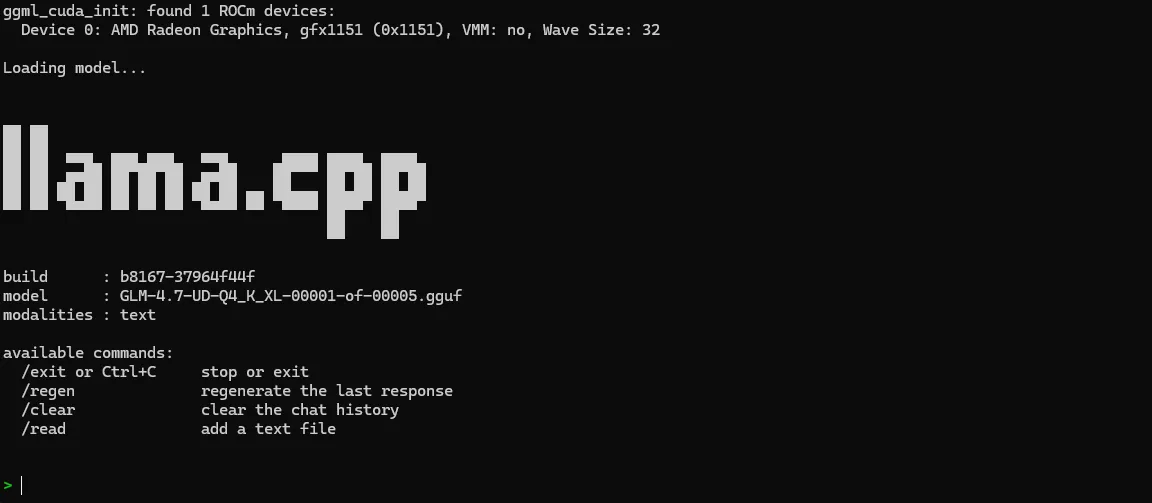
Once running, llama-cli displays model loading progress and enters an interactive prompt where you can chat directly with the model:
llama-server
llama-server exposes the same inference engine through a persistent server process with an integrated web UI and an OpenAI-compatible HTTP API. This is the preferred interface for longer-running deployments, multi-user access, and integration with external tooling.
./llama-server \ -m /path/to/GLM-4.7-GGUF/UD-Q4_K_XL/GLM-4.7-UD-Q4_K_XL-00001-of-00005.gguf \ -c 32768 \ -fa on \ -ngl 999 \ -lm none \ --host 0.0.0.0 \ --port 8081 \ --rpc <RPC_WORKER_IP>:50053Finding
<RPC_WORKER_IP>: On Machine 2, runhostname -I | awk '{print $1}'to find its local IP address.
.\llama-server.exe ` -m C:\path\to\GLM-4.7-GGUF\UD-Q4_K_XL\GLM-4.7-UD-Q4_K_XL-00001-of-00005.gguf ` -c 32768 ` -fa on ` -ngl 999 ` -lm none ` --host 0.0.0.0 ` --port 8081 ` --rpc <RPC_WORKER_IP>:50053Finding
<RPC_WORKER_IP>: On Machine 2, runipconfig | findstr /C:"IPv4"in Terminal (Powershell) to find its local IP address.
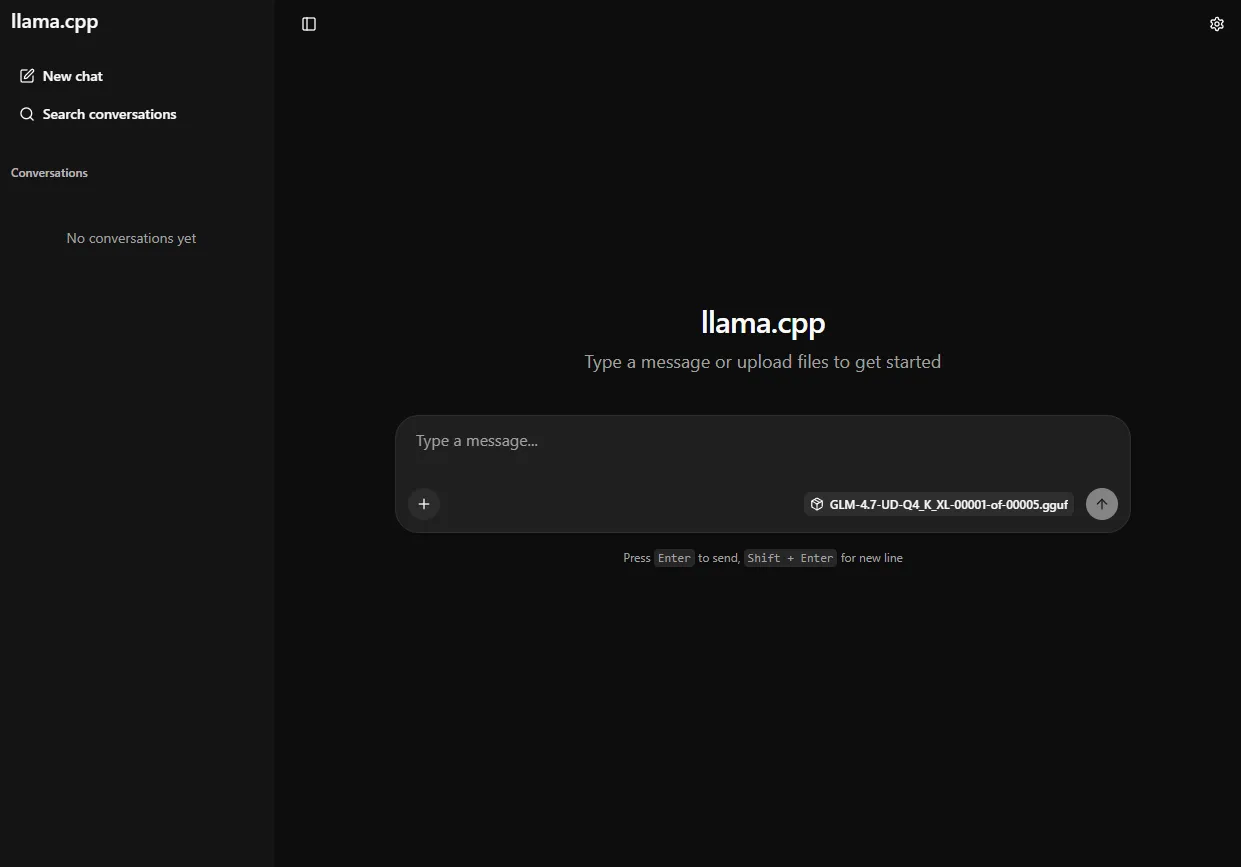
Once started, open http://<HOST_IP>:8081 in your browser to access the built-in web UI. This provides a browser-based chat interface for interacting with the model:
Finding
<HOST_IP>: On Machine 1, runhostname -I | awk '{print $1}'to find its local IP address.
Finding
<HOST_IP>: On Machine 1, runipconfig | findstr /C:"IPv4"in Terminal (Powershell) to find its local IP address.
Parameter Reference
| Flag | Purpose |
|---|---|
-m | Path to the GGUF model file (use the first shard, 00001-of-00005) |
-c | Context size in tokens. Larger values use more memory |
-fa on | Enables rocWMMA Flash Attention for improved performance on AMD GPUs |
-ngl 999 | Offloads all model layers to the GPU |
-lm none | Sets the model load mode to none, disabling memory-mapping to reduce load times when model size exceeds system RAM but fits in VRAM |
--host | IP to bind llama-server to (llama-server only) |
--port | Port to serve the HTTP API on (llama-server only) |
--rpc | Comma-separated list of RPC worker endpoints (IP:port) |
For full parameter usage, refer to the llama-cli documentation and llama-server documentation.
Next Steps
- Connect third-party applications:
llama-serverexposes an OpenAI-compatible API. Point any OpenAI-compatible application (such as Open WebUI) athttp://<HOST_IP>:8081with any placeholder API key (e.g.,none) to connect to your cluster - Explore other models: Browse quantized GGUFs on Hugging Face to find models that fit within your cluster’s combined GPU memory
- Scale to four nodes: Add two more Ryzen AI Halo systems as additional RPC workers to access models at the 1 trillion parameter scale. Pass additional endpoints to
--rpcas a comma-separated list (e.g.,--rpc <IP1>:50053,<IP2>:50053,<IP3>:50053)
Need help with this playbook?
Run into an issue or have a question? Open a GitHub issue and our team will take a look.