- Automating Workflows with n8n and Local LLMs
- Generating Images with ComfyUI and Z Image Turbo
- Local LLM Coding with VSCode and Qwen3-Coder
- Running and Serving LLMs with LM Studio
- Running LLMs on PyTorch with AMD ROCm™ Software
- Build a GitHub-to-Slack Development Digest with Agent Canvas
- Building Custom GPU Kernels with PyTorch and AMD ROCm™
- Building Your First Agent with GAIA
- Chatting with LLMs in Open WebUI
- Clustering Four Ryzen™ AI Halos with RCCL
- Clustering Four Ryzen™ AI Halos with RPC
- Clustering Two Ryzen™ AI Halos with RCCL
- Clustering Two Ryzen™ AI Halos with RPC
- Fine-Tuning LLMs with LLaMA Factory
- Fine-Tuning LLMs with PyTorch and AMD ROCm™ Software
- Fine-Tuning LLMs with Unsloth
- Getting Started with Lemonade
- Getting Started with Ollama
- Getting Started with OpenHands and a Local LLM
- Getting Started with vLLM
- Local Computer Vision with AMD Ryzen™ AI NPU
- Real-Time Speech-to-Speech Translation
- Remote Development with AMD Sync
- Running DeepSeek V4 Flash with ds4
- Running Hermes Agent Locally with Lemonade Server
- Running OpenClaw Locally with Lemonade Server
| PyTorch | 2.13 |
| AMD GPU Driver | Latest from Ryzen AI Developer Center |
| LLaMA-Factory | Latest |
| PyTorch | 2.13 |
| AMD GPU Driver | 26.8.1 (from Ryzen AI Developer Center) |
| LLaMA-Factory | Latest |
| PyTorch | 2.13.0 |
| AMD GPU Driver | Latest inbox driver |
| LLaMA-Factory | Latest |
| PyTorch | 2.13.0 |
| AMD GPU Driver | Adrenalin 26.9.1 |
| LLaMA-Factory | Latest |
| PyTorch | 2.13.0 |
| AMD GPU Driver | Latest inbox driver |
| LLaMA-Factory | Latest |
| PyTorch | 2.13.0 |
| AMD GPU Driver | Adrenalin 26.9.1 |
| LLaMA-Factory | Latest |
| PyTorch | 2.13.0 |
| AMD GPU Driver | Latest inbox driver |
| LLaMA-Factory | Latest |
| PyTorch | 2.13.0 |
| AMD GPU Driver | Adrenalin 26.9.1 |
| LLaMA-Factory | Latest |
| PyTorch | 2.13.0 |
| AMD GPU Driver | RSL 26.14 |
| LLaMA-Factory | Latest |
| PyTorch | 2.13.0 |
| AMD GPU Driver | Adrenalin 26.9.1 |
| LLaMA-Factory | Latest |
| PyTorch | 2.13.0 |
| AMD GPU Driver | RSL 26.14 |
| LLaMA-Factory | Latest |
| PyTorch | 2.13.0 |
| AMD GPU Driver | Adrenalin 26.9.1 |
| LLaMA-Factory | Latest |
| PyTorch | 2.13.0 |
| AMD GPU Driver | RSL 26.14 |
| LLaMA-Factory | Latest |
| PyTorch | 2.13.0 |
| AMD GPU Driver | Adrenalin 26.9.1 |
| LLaMA-Factory | Latest |
Fine-Tuning LLMs with LLaMA Factory
Fine-tune large language models (LLMs) using LLaMA Factory and LoRA techniques.

Overview
Efficient fine-tuning is vital for adapting large language models (LLMs) to downstream tasks. LLaMA Factory is an open-source and user-friendly platform that streamlines the training and fine-tuning of large language models and multimodal models. It allows users to customize hundreds of pre-trained models locally with minimal coding.
This playbook teaches you how to fine-tune LLMs using LLaMA Factory on your local AMD hardware.
What You’ll Learn
- How to set up LLaMA Factory with AMD ROCm™ software
- How to configure LLM fine-tuning parameters (using Qwen/Qwen3-4B-Instruct-2507 as an example)
- How to run LLaMA Factory fine-tuning
- How to run inference with the fine-tuned model
- How to export the fine-tuned model
Estimated Time
- Duration: It will take about 60 minutes to run this playbook (depending on your model/dataset size and network speed).
- View the LLaMA Factory GitHub for more information.
Setting the Memory Configuration
For the Ryzen AI Halo, the dedicated GPU memory defaults to 64GB, which is sufficient for most workloads. For larger models or longer contexts, increasing this may help. To adjust, open AMD Software: Adrenalin Edition™ and navigate to Performance → Tuning → AMD Variable Graphics Memory. Reboot for the changes to take effect.
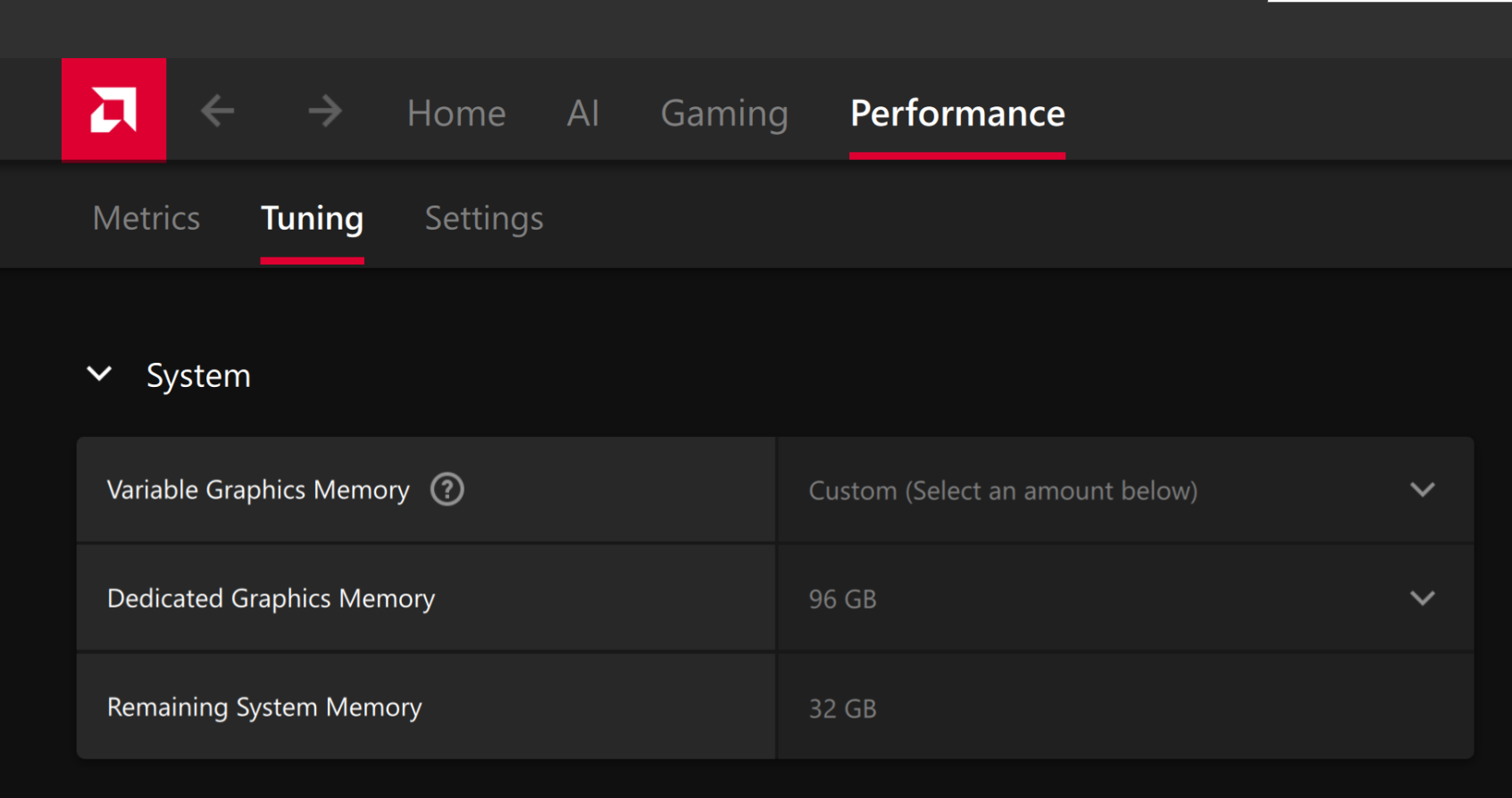
To change the dedicated GPU memory value, open AMD Software: Adrenalin Edition™ and navigate to Performance → Tuning → AMD Variable Graphics Memory. Reboot for the changes to take effect.
On Linux, to run larger models, increase the shared memory pool available to the GPU. This might involve setting the BIOS dedicated GPU memory to the minimum, so that the shared memory pool can be maximized.
For the AMD Ryzen™ AI Halo, to modify the default setting, open the AMD Ryzen™ AI Developer Center and go to the Settings tab. Under Graphics Performance Settings, increase the Shared Video Memory slider, then click Apply Changes and reboot for the changes to take effect.
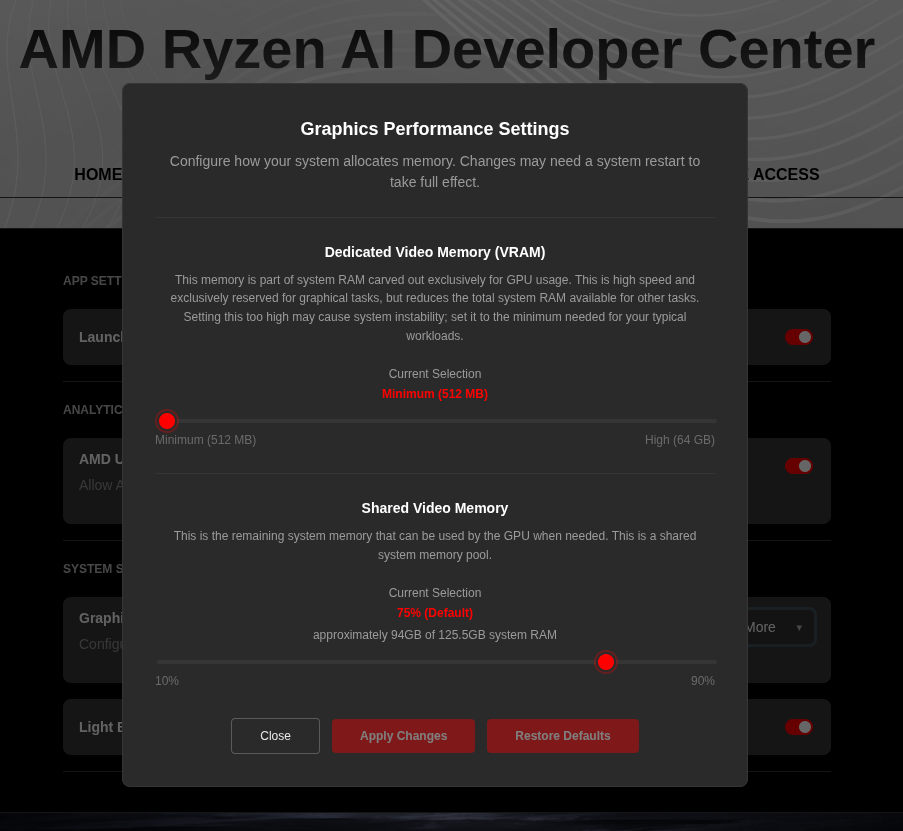
Increase the shared memory pool by changing the kernel’s Translation Table Manager (TTM) page setting. AMD recommends setting the minimum dedicated VRAM in the BIOS (0.5 GB) so the maximum amount is available as shared memory.
- Install the
pipxutility and add the path for pipx-installed wheels to the system search path:
sudo apt install pipxpipx ensurepath- Install the
amd-debug-toolswheel from PyPI:
pipx install amd-debug-tools- Query the current shared memory settings:
amd-ttm- Increase the shared memory allocation (units in GB):
amd-ttm --set <NUM>- Reboot for the changes to take effect.
Check for Software Updates
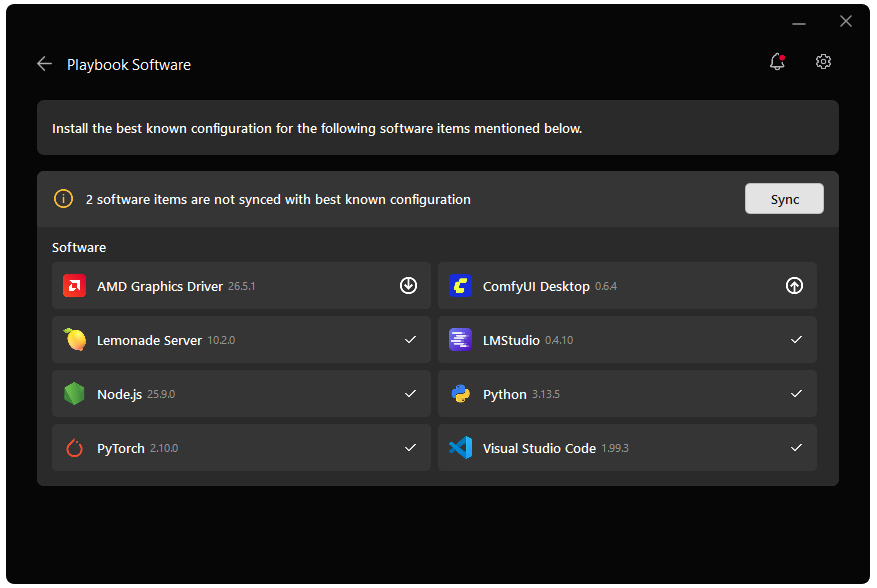
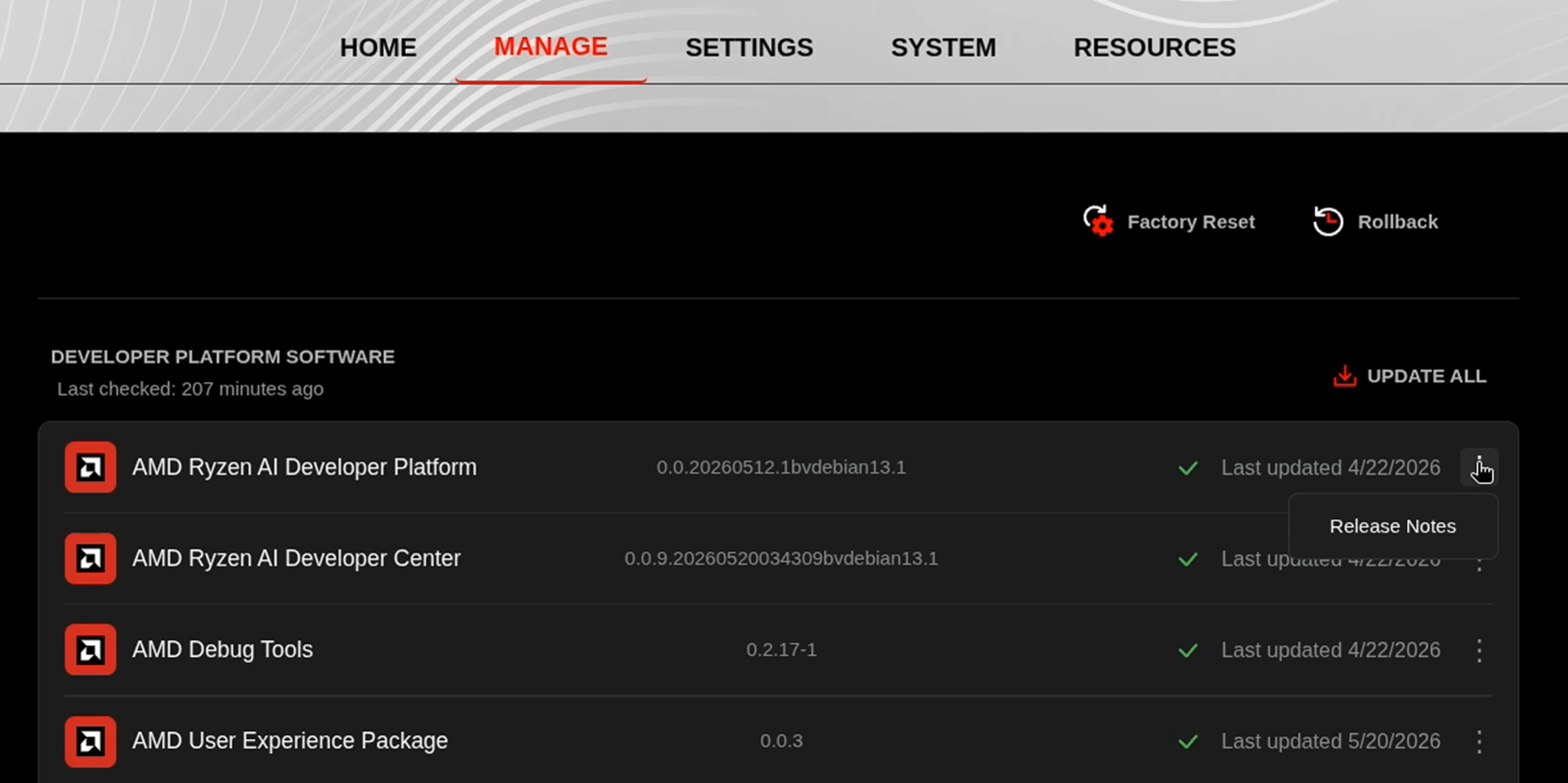
Before starting, ensure your Ryzen AI Halo has the latest software installed. Open the AMD Ryzen™ AI Developer Center and check for available updates, both to the app itself and additional software.
Go to the Updates tab. If updates are available, install them and reboot before continuing.
Go to the Manage tab. If updates are available, install them and reboot before continuing.
Installing Software Prerequisites
Create a Virtual Environment
sudo apt updatesudo apt install -y python3-venvpython3 -m venv llamafactory-env --system-site-packagessource llamafactory-env/bin/activateGrant your user access to GPU devices (log out and back in for this to take effect):
sudo usermod -aG render,video $LOGNAMEsudo apt updatesudo apt install -y python3-venvpython3 -m venv llamafactory-envsource llamafactory-env/bin/activatepython -m venv llamafactory-env --system-site-packagesllamafactory-env\Scripts\activatepython -m venv llamafactory-envllamafactory-env\Scripts\activateInstalling Basic Dependencies
PyTorch
Install PyTorch with AMD ROCm™ software support in the created virtual environment:
python -m pip install --index-url https://stable.repo.amd.com/rocm/whl-next/ "torch[device-gfx1151]==2.13.0+rocm10.0.0" "torchvision[device-gfx1151]==0.28.0+rocm10.0.0" "torchaudio==2.11.0.2+rocm10.0.0"python -m pip install --index-url https://stable.repo.amd.com/rocm/whl-next/ "torch[device-gfx1150]==2.13.0+rocm10.0.0" "torchvision[device-gfx1150]==0.28.0+rocm10.0.0" "torchaudio==2.11.0.2+rocm10.0.0"python -m pip install --index-url https://stable.repo.amd.com/rocm/whl-next/ "torch[device-gfx1152]==2.13.0+rocm10.0.0" "torchvision[device-gfx1152]==0.28.0+rocm10.0.0" "torchaudio==2.11.0.2+rocm10.0.0"python -m pip install --index-url https://stable.repo.amd.com/rocm/whl-next/ "torch[device-gfx1100]==2.13.0+rocm10.0.0" "torchvision[device-gfx1100]==0.28.0+rocm10.0.0" "torchaudio==2.11.0.2+rocm10.0.0"python -m pip install --index-url https://stable.repo.amd.com/rocm/whl-next/ "torch[device-gfx1201]==2.13.0+rocm10.0.0" "torchvision[device-gfx1201]==0.28.0+rocm10.0.0" "torchaudio==2.11.0.2+rocm10.0.0"For other devices, please refer to ROCm 10.0.0 Documentation for full instructions.
AMD GPU Driver
Update to the latest AMD GPU driver using AMD Software: Adrenalin Edition™.
- Open
AMD Software: Adrenalin Editionfrom your Start menu or system tray. - Navigate to Driver and Software, click Manage Updates.
- If an update is available, follow the prompts to download and install.
AMD GPU Driver
Install the AMD GPU Driver (amdgpu) using the Radeon Software for Linux (RSL) flow. For instructions for your distribution, see the ROCm installation at: Install the kernel driver.
For the driver itself, see Linux® Drivers for AMD Radeon™
Installing Additional Dependencies
pip install huggingface_hubInstall LLaMA Factory
LLaMA Factory depends on PyTorch. You should already have it installed per the above requirements.
Download the source code from LLaMA Factory official GitHub repository, and install its dependencies.
git clone --depth 1 https://github.com/hiyouga/LlamaFactory.gitcd LlamaFactorypip install setuptools --break-system-packagespip install -e . --break-system-packagespip install -r requirements/metrics.txt --break-system-packagesgit clone --depth 1 https://github.com/hiyouga/LlamaFactory.gitcd LlamaFactorypip install -e .pip install -r requirements/metrics.txtVerify if llamafactory-cli is executable.
cd LlamaFactoryllamafactory-cli version || python -m llamafactory.cli version || trueecho "llamafactory-cli is available"command -v llamafactory-clicd LlamaFactoryif (Get-Command llamafactory-cli -ErrorAction SilentlyContinue) { llamafactory-cli version Write-Host "llamafactory-cli is available"} else { Write-Host "llamafactory-cli is not available"}Example output:

Having successfully installed LLaMA Factory, let’s run fine-tuning on it.
Using LLaMA Factory CLI for Fine Tuning
This section will cover how to prepare fine-tuning datasets, configure LoRA/QLoRA parameters, and run LoRA fine-tuning.
Dataset Preparation
LLaMA Factory supports fine-tuning datasets in the Alpaca format and ShareGPT format. All the available datasets have been defined in the dataset_info.json. If you are using a custom dataset, please make sure to add a dataset description in dataset_info.json and specify the dataset name before training. Details can be found in their docs here.
In this playbook, we will use the identity and alpaca_en_demo datasets as an example, and configure the dataset information in the next step.
Fine-tuning parameter configuration
LLaMA Factory supports multiple fine-tuning schemes.
| Fine-Tuning schemes | LLaMA Factory Examples |
|---|---|
| Full-Parameter | examples/train_full |
| LoRA fine-tuning | examples/train_lora |
| QLoRA fine-tuning | examples/train_qlora |
These example configuration files have specified model parameters, fine-tuning method parameters, dataset parameters, evaluation parameters, and more. You can configure them according to your own needs. In this playbook, we will use qwen3_lora_sft.yaml.
Key parameters explained:
model_name_or_path- Hugging Face model name or local model file path.stage- Training stage. Options: rm (reward modeling), pt (pretrain), sft (Supervised Fine-Tuning), PPO, DPO, KTO, ORPO.do_train- true for training, false for evaluationfinetuning_type- Fine-tuning method. Options: freeze, lora, fulllora_rank- The dimensionality of the low-rank matrix used in LoRA, typical values: 4, 6, 8, 16 (smaller values = fewer parameters = faster fine-tuning; larger values = better task adaptation but higher resource usage).lora_target- Target modules for LoRA method. Default: all.dataset- Dataset(s) to use. Use “,” to separate multiple datasetsoutput_dir- Fine-tuning Output pathlogging_steps- Logging interval in stepssave_steps- Model checkpoint saving interval.overwrite_output_dir- Whether to allow overwriting the output directory.per_device_train_batch_size- Training batch size per device.gradient_accumulation_steps- Number of gradient accumulation steps.learning_rate- Learning ratenum_train_epochs- Number of training epochslr_scheduler_type- Learning rate schedule. Options: linear, cosine, polynomial, constant, etc.warmup_ratio- Learning rate warmup ratio
We will modify the default value of lora_rank to run fine-tuning on AMD Ryzen™ & AMD Radeon™ GPUs.
sed -i.bak 's/lora_rank: 8/lora_rank: 6/g' examples/train_lora/qwen3_lora_sft.yamlWe will update the default LoRA fine-tuning configuration for better compatibility with AMD Ryzen™ and AMD Radeon™ GPUs:
- Set
lora_rankfrom8to6to reduce memory usage during fine-tuning. - Use
fp16instead ofbf16for broader AMD GPU compatibility and lower memory usage. - Set
dataloader_num_workersto0on Windows to avoid"Can't pickle local object<>"errors caused by multiprocessing data loading.
$filePath = "examples/train_lora/qwen3_lora_sft.yaml"
Copy-Item -Path $filePath -Destination "$filePath.bak" -Force
# Read the file and update the training settings$content = Get-Content -Path $filePath -Raw
$newContent = $content `  -replace 'lora_rank: 8', 'lora_rank: 6' `  -replace 'bf16: true', 'fp16: true' `  -replace 'dataloader_num_workers: 4', 'dataloader_num_workers: 0'
Set-Content -Path $filePath -Value $newContent
Run LLaMA Factory Fine-Tuning
llamafactory-cli is the official command-line interface (CLI) tool for LLaMA Factory, developed to simplify end-to-end LLM workflows (data preparation → fine-tuning → evaluation → deployment) without writing complex code.
For training/fine-tuning, llamafactory-cli train is the core subcommand of the LLaMA Factory CLI. It abstracts fine-tuning workflows (data preprocessing, hyperparameter tuning, hardware optimization) into a single CLI command, supporting multiple fine-tuning paradigms (LoRA/QLoRA/Full Fine-Tuning) and is optimized for low-resource GPUs (e.g., QLoRA on 16GB VRAM).
You can run LLaMA Factory fine-tuning using the following command, which is based on the modified configuration file of Qwen3 LoRA fine-tuning.
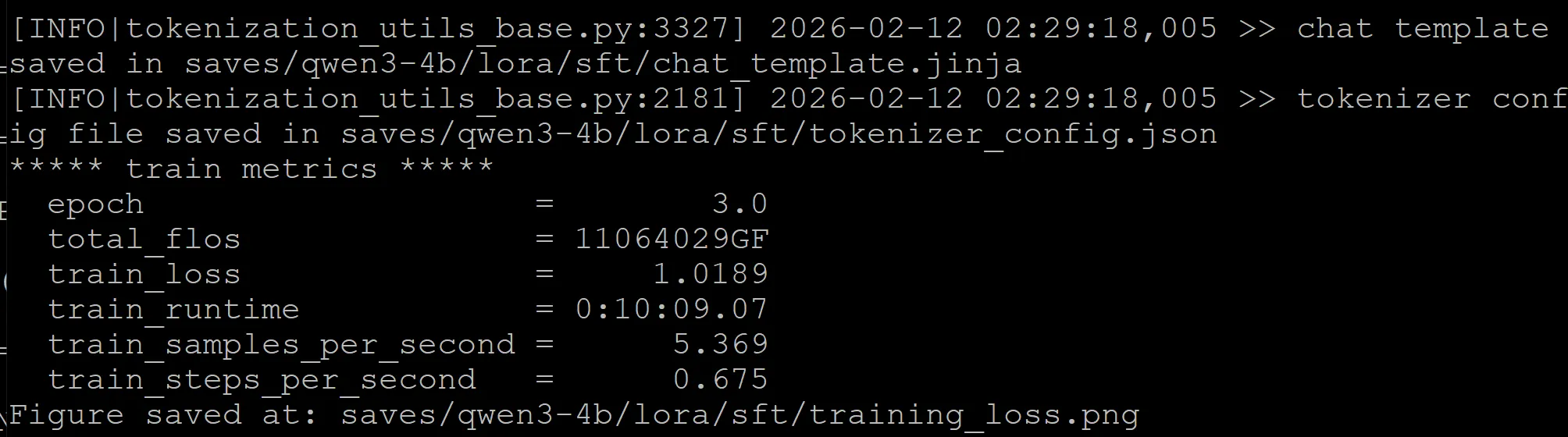
llamafactory-cli train examples/train_lora/qwen3_lora_sft.yamlAfter running LLM finetuning, all generated outputs are stored in the “output_dir”, including model checkpoint files, configuration files, and training metrics.
Test the fine-tuned model
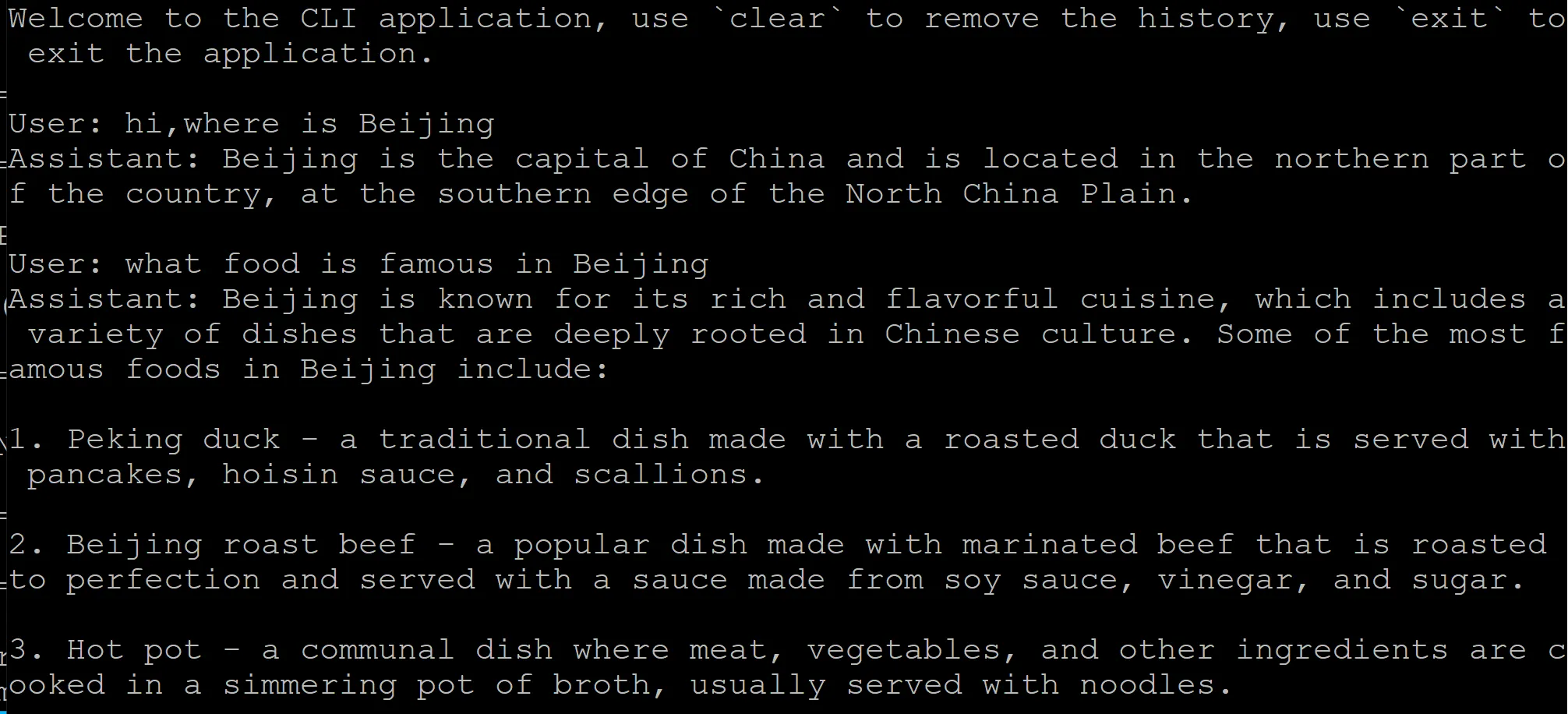
llamafactory-cli chat is designed for interactive chat/inference with LLMs (both base models and LoRA-fine-tuned models). LLaMA Factory provides the sample configuration to run inference of fine-tuned models in examples/inference. You can also modify this sample configuration to change the settings, such as the inference backend.
Use the following command to test the Qwen3 fine-tuned model:
llamafactory-cli chat examples/inference/qwen3_lora_sft.yamlAn example chat using the fine-tuned model is shown below:
Export the fine-tuned model
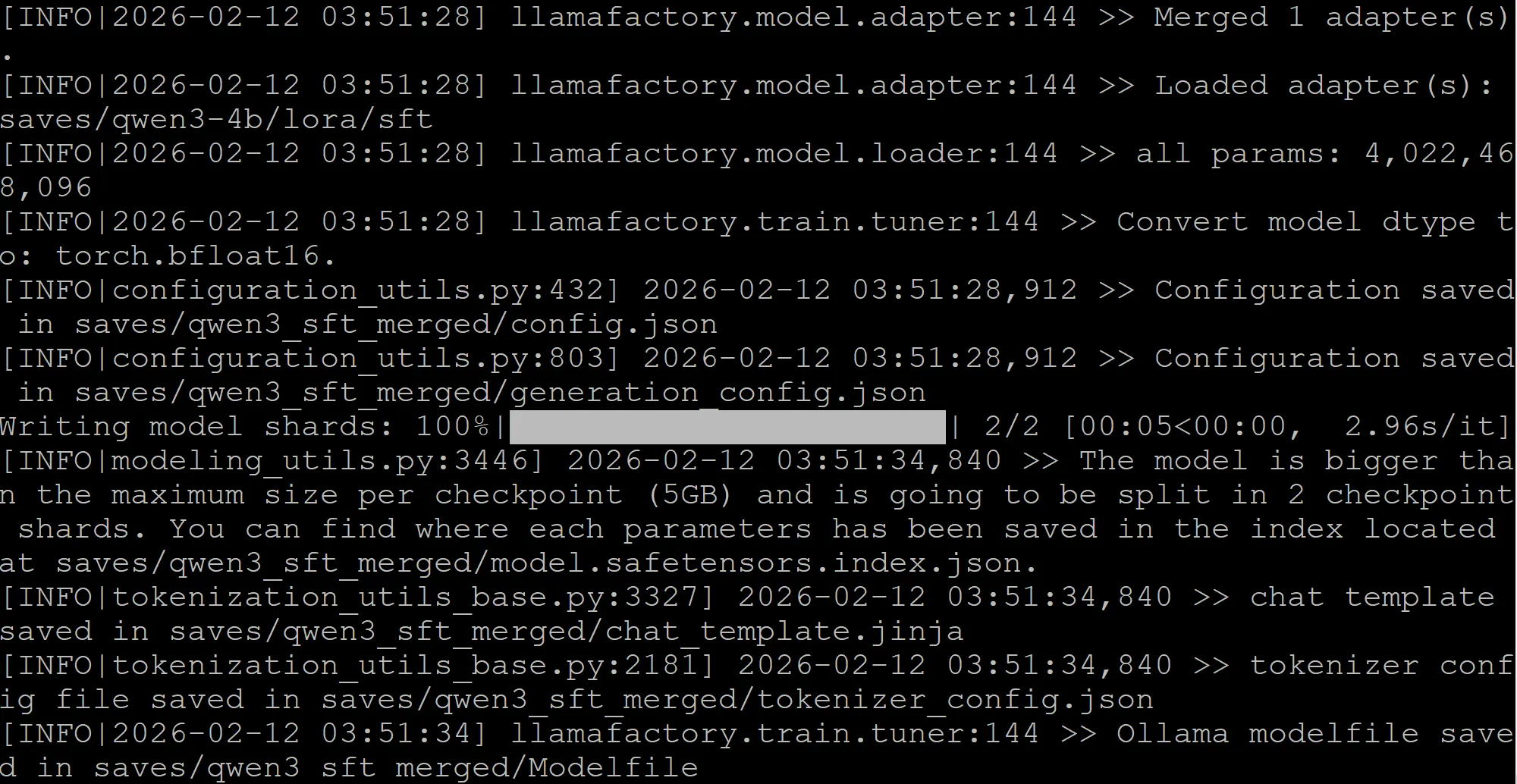
For production use-cases, the pre-trained model and the LoRA adapter need to be merged and exported into a single model. This merged model can be used as a normal Hugging Face model file. LLaMA Factory provides the sample configurations in examples/merge_lora.
Use the following command to export the Qwen3 fine-tuned model:
llamafactory-cli export examples/merge_lora/qwen3_lora_sft.yamlThe result of exporting the fine-tuned model is shown below.
Using LLaMA Factory GUI
LLaMA-Factory also supports zero-code fine-tuning of LLMs through a web UI in the browser.
Use the following command to open it:
llamafactory-cli webuiThe LlamaFactory Web UI offers a streamlined interface for managing machine learning workflows, including training, evaluation, prediction, chatting, and exporting models. Here’s a brief introduction to each tab:
- Train: This tab allows you to select a model and dataset, configure training parameters, and initiate the training process. It’s essential to understand the mandatory and optional parameters to optimize the training setup.
- Evaluate & Predict: After training, you can evaluate the model’s performance and make predictions using this tab. It provides insights into the model’s accuracy and effectiveness on new data.
- Chat: Once training is complete, load the model in the Chat tab to interact with it and see the results of your work. This feature enables real-time communication with the trained model.
- Export: This tab facilitates the export of trained models for deployment or further use. You can save your models in various formats suitable for different applications.
For detailed guidance, we encourage you to refer to the official documentation on the LlamaFactory GitHub repository and the LlamaFactory ReadTheDocs. Additionally, the Wiki LLaMA Board Web UI provides valuable insights into the interface and its functionalities.
Next Steps
- Try different models such as
gpt-ossand other state of the art models. - Experiment with different backends on the fine-tuned model
For more documentation, please visit: https://llamafactory.readthedocs.io/en/latest/
Need help with this playbook?
Run into an issue or have a question? Open a GitHub issue and our team will take a look.