- Generating images with ComfyUI and Z Image Turbo
- Automating Workflows with n8n and Local LLMs
- Building Your First Agent with GAIA
- Fine-tune LLMs with PyTorch and AMD ROCm™ Software
- Getting Started with Ollama
- How to Chat with LLMs in Open WebUI
- LLM Fine-Tuning with LLaMA Factory
- Local LLM Coding with VS Code and Qwen3-Coder
- Optimized LLMs Fine-tuning with Unsloth
- Running and serving LLMs with LM Studio
- Running LLMs with PyTorch and AMD ROCm™ software
- Speech-to-Speech Translation
- Using Lemonade Across CPU, GPU, and NPU
LLM Fine-Tuning with LLaMA Factory
Fine-tune large language models (LLMs) using LLaMA Factory and LoRA techniques.
Overview
Efficient fine-tuning is vital for adapting large language models (LLMs) to downstream tasks. LLaMA Factory is an open-source and user-friendly platform that streamlines the training and fine-tuning of large language models and multimodal models. It allows users to customize hundreds of pre-trained models locally with minimal coding.
This playbook teaches you how to fine-tune LLMs using LLaMA Factory on your local AMD hardware.
What you’ll learn
- How to set up LLaMA Factory with AMD ROCm™ software
- How to configure LLM fine-tuning parameters (using Qwen/Qwen3-4B-Instruct-2507 as an example)
- How to run LLaMA Factory fine-tuning
- How to run inference with the fine-tuned model
- How to export the fine-tuned model
Estimated Time
- Duration: It will take about 60 minutes to run this playbook (depending on your model/dataset size and network speed).
- View the LLaMA Factory GitHub for more information.
Setting up the Environment
Create a Virtual Environment
sudo apt updatesudo apt install -y python3-venvpython3 -m venv venvsource venv/bin/activatepython -m venv venvvenv\Scripts\activateInstalling Basic Dependencies
ROCm
Add the current user to the render and video groups.
sudo usermod -a -G render,video $LOGNAMERestart your system to apply the settings.
sudo rebootInstall ROCm in the created virtual environment.
python -m pip install --upgrade pippython -m pip install --index-url https://repo.amd.com/rocm/whl/gfx1151/ "rocm[libraries,devel]"python -m pip install --upgrade pippython -m pip install --index-url https://repo.amd.com/rocm/whl/gfx1152/ "rocm[libraries,devel]"python -m pip install --upgrade pippython -m pip install --index-url https://repo.amd.com/rocm/whl/gfx1150/ "rocm[libraries,devel]"python -m pip install --upgrade pippython -m pip install --index-url https://repo.amd.com/rocm/whl/gfx120x-all/ "rocm[libraries,devel]"For further installation help, please see this link.
PyTorch
Install PyTorch with AMD ROCm™ software support in the created virtual environment:
python -m pip install --index-url https://repo.amd.com/rocm/whl/gfx1151/ "torch==2.11.0+rocm7.13.0" "torchvision==0.26.0+rocm7.13.0" "torchaudio==2.11.0+rocm7.13.0"python -m pip install --index-url https://repo.amd.com/rocm/whl/gfx1152/ "torch==2.11.0+rocm7.13.0" "torchvision==0.26.0+rocm7.13.0" "torchaudio==2.11.0+rocm7.13.0"python -m pip install --index-url https://repo.amd.com/rocm/whl/gfx1150/ "torch==2.11.0+rocm7.13.0" "torchvision==0.26.0+rocm7.13.0" "torchaudio==2.11.0+rocm7.13.0"See this link for details.
AMD GPU Driver
Update to the latest AMD GPU driver using AMD Software: Adrenalin Edition™.
- Open
AMD Software: Adrenalin Editionfrom your Start menu or system tray. - Navigate to Driver and Software, click Manage Updates.
- If an update is available, follow the prompts to download and install.
AMD GPU Driver
Download and install the latest AMD GPU driver for Linux:
- Visit the AMD Linux Drivers page.
- Follow the installation instructions provided on the download page.
PyTorch
Install PyTorch with AMD ROCm™ software support in the created virtual environment:
python -m pip install --index-url https://repo.amd.com/rocm/whl/gfx1151/ "torch==2.11.0+rocm7.13.0" "torchvision==0.26.0+rocm7.13.0" "torchaudio==2.11.0+rocm7.13.0"python -m pip install --index-url https://repo.amd.com/rocm/whl/gfx1152/ "torch==2.11.0+rocm7.13.0" "torchvision==0.26.0+rocm7.13.0" "torchaudio==2.11.0+rocm7.13.0"python -m pip install --index-url https://repo.amd.com/rocm/whl/gfx1150/ "torch==2.11.0+rocm7.13.0" "torchvision==0.26.0+rocm7.13.0" "torchaudio==2.11.0+rocm7.13.0"See this link for details.
AMD GPU Driver
Update to the latest AMD GPU driver using AMD Software: Adrenalin Edition™.
- Open
AMD Software: Adrenalin Editionfrom your Start menu or system tray. - Navigate to Driver and Software, click Manage Updates.
- If an update is available, follow the prompts to download and install.
AMD GPU Driver
Download and install the latest AMD GPU driver for Linux:
- Visit the AMD Linux Drivers page.
- Follow the installation instructions provided on the download page.
Installing Additional Dependencies
- Python: ensure minimum version is 3.11
pip install huggingface_hub --break-system-packagespip install huggingface_hubInstall LLaMA Factory
LLaMA Factory depends on PyTorch. You should already have it installed per the above requirements.
Download the source code from LLaMA Factory official GitHub repository, and install its dependencies.
git clone --depth 1 https://github.com/hiyouga/LlamaFactory.gitcd LlamaFactorypip install setuptools --break-system-packagespip install -e . --break-system-packagespip install -r requirements/metrics.txt --break-system-packagesgit clone --depth 1 https://github.com/hiyouga/LlamaFactory.gitcd LlamaFactorypip install -e .pip install -r requirements/metrics.txtVerify if llamafactory-cli is executable.
cd LlamaFactoryllamafactory-cli version || python -m llamafactory.cli version || trueecho "llamafactory-cli is available"command -v llamafactory-clicd LlamaFactoryif (Get-Command llamafactory-cli -ErrorAction SilentlyContinue) { llamafactory-cli version Write-Host "llamafactory-cli is available"} else { Write-Host "llamafactory-cli is not available"}Example output:

Having successfully installed LLaMA Factory, let’s run fine-tuning on it.
Using LLaMA Factory CLI for Fine Tuning
This section will cover how to prepare fine-tuning datasets, configure LoRA/QLoRA parameters, and run LoRA fine-tuning.
Dataset Preparation
LLaMA Factory supports fine-tuning datasets in the Alpaca format and ShareGPT format. All the available datasets have been defined in the dataset_info.json. If you are using a custom dataset, please make sure to add a dataset description in dataset_info.json and specify the dataset name before training. Details can be found in their docs here.
In this playbook, we will use the identity and alpaca_en_demo datasets as an example, and configure the dataset information in the next step.
Fine-tuning parameter configuration
LLaMA Factory supports multiple fine-tuning schemes.
| Fine-Tuning schemes | LLaMA Factory Examples |
|---|---|
| Full-Parameter | examples/train_full |
| LoRA fine-tuning | examples/train_lora |
| QLoRA fine-tuning | examples/train_qlora |
These example configuration files have specified model parameters, fine-tuning method parameters, dataset parameters, evaluation parameters, and more. You can configure them according to your own needs. In this playbook, we will use qwen3_lora_sft.yaml.
Key parameters explained:
model_name_or_path- Hugging Face model name or local model file path.stage- Training stage. Options: rm (reward modeling), pt (pretrain), sft (Supervised Fine-Tuning), PPO, DPO, KTO, ORPO.do_train- true for training, false for evaluationfinetuning_type- Fine-tuning method. Options: freeze, lora, fulllora_rank- The dimensionality of the low-rank matrix used in LoRA, typical values: 4, 6, 8, 16 (smaller values = fewer parameters = faster fine-tuning; larger values = better task adaptation but higher resource usage).lora_target- Target modules for LoRA method. Default: all.dataset- Dataset(s) to use. Use “,” to separate multiple datasetsoutput_dir- Fine-tuning Output pathlogging_steps- Logging interval in stepssave_steps- Model checkpoint saving interval.overwrite_output_dir- Whether to allow overwriting the output directory.per_device_train_batch_size- Training batch size per device.gradient_accumulation_steps- Number of gradient accumulation steps.learning_rate- Learning ratenum_train_epochs- Number of training epochslr_scheduler_type- Learning rate schedule. Options: linear, cosine, polynomial, constant, etc.warmup_ratio- Learning rate warmup ratio
We will modify the default value of lora_rank to run fine-tuning on AMD Ryzen™ & AMD Radeon™ GPUs.
sed -i.bak 's/lora_rank: 8/lora_rank: 6/g' examples/train_lora/qwen3_lora_sft.yamlWe will update the default LoRA fine-tuning configuration for better compatibility with AMD Ryzen™ and AMD Radeon™ GPUs:
- Set
lora_rankfrom8to6to reduce memory usage during fine-tuning. - Use
fp16instead ofbf16for broader AMD GPU compatibility and lower memory usage. - Set
dataloader_num_workersto0on Windows to avoid"Can't pickle local object<>"errors caused by multiprocessing data loading.
$filePath = "examples/train_lora/qwen3_lora_sft.yaml"
# Create a backup before modifying the YAML fileCopy-Item -Path $filePath -Destination "$filePath.bak" -Force
# Read the file and update the training settings$content = Get-Content -Path $filePath -Raw
$newContent = $content `  -replace 'lora_rank: 8', 'lora_rank: 6' `  -replace 'bf16: true', 'fp16: true' `  -replace 'dataloader_num_workers: 4', 'dataloader_num_workers: 0'
Set-Content -Path $filePath -Value $newContent
Run LLaMA Factory Fine-Tuning
llamafactory-cli is the official command-line interface (CLI) tool for LLaMA Factory, developed to simplify end-to-end LLM workflows (data preparation → fine-tuning → evaluation → deployment) without writing complex code.
For training/fine-tuning, llamafactory-cli train is the core subcommand of the LLaMA Factory CLI. It abstracts fine-tuning workflows (data preprocessing, hyperparameter tuning, hardware optimization) into a single CLI command, supporting multiple fine-tuning paradigms (LoRA/QLoRA/Full Fine-Tuning) and is optimized for low-resource GPUs (e.g., QLoRA on 16GB VRAM).
You can run LLaMA Factory fine-tuning using the following command, which is based on the modified configuration file of Qwen3 LoRA fine-tuning.
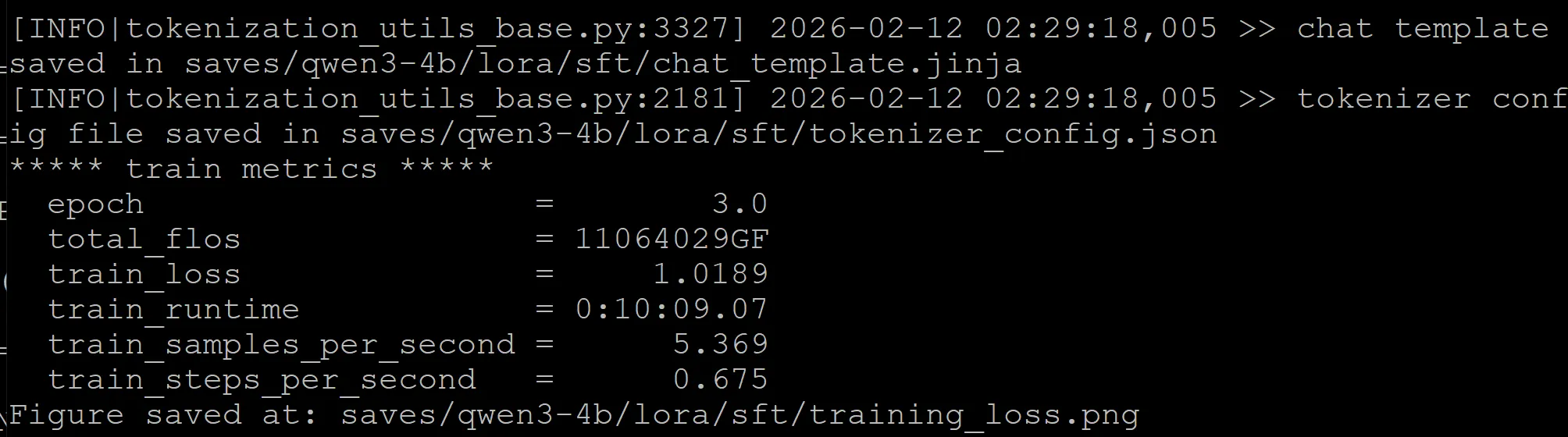
llamafactory-cli train examples/train_lora/qwen3_lora_sft.yamlAfter running LLM finetuning, all generated outputs are stored in the “output_dir”, including model checkpoint files, configuration files, and training metrics.
Test the fine-tuned model
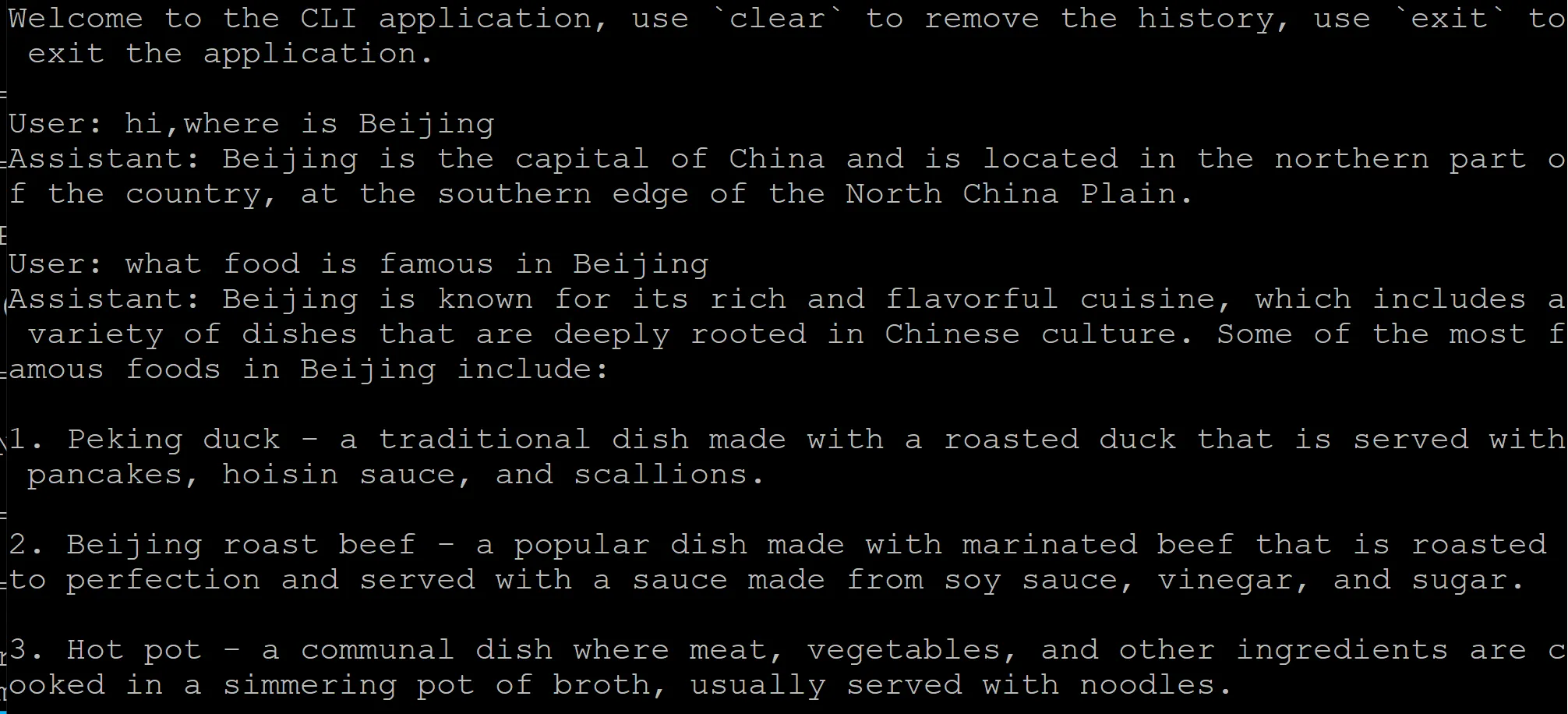
llamafactory-cli chat is designed for interactive chat/inference with LLMs (both base models and LoRA-fine-tuned models). LLaMA Factory provides the sample configuration to run inference of fine-tuned models in examples/inference. You can also modify this sample configuration to change the settings, such as the inference backend.
Use the following command to test the Qwen3 fine-tuned model:
llamafactory-cli chat examples/inference/qwen3_lora_sft.yamlAn example chat using the fine-tuned model is shown below:
Export the fine-tuned model
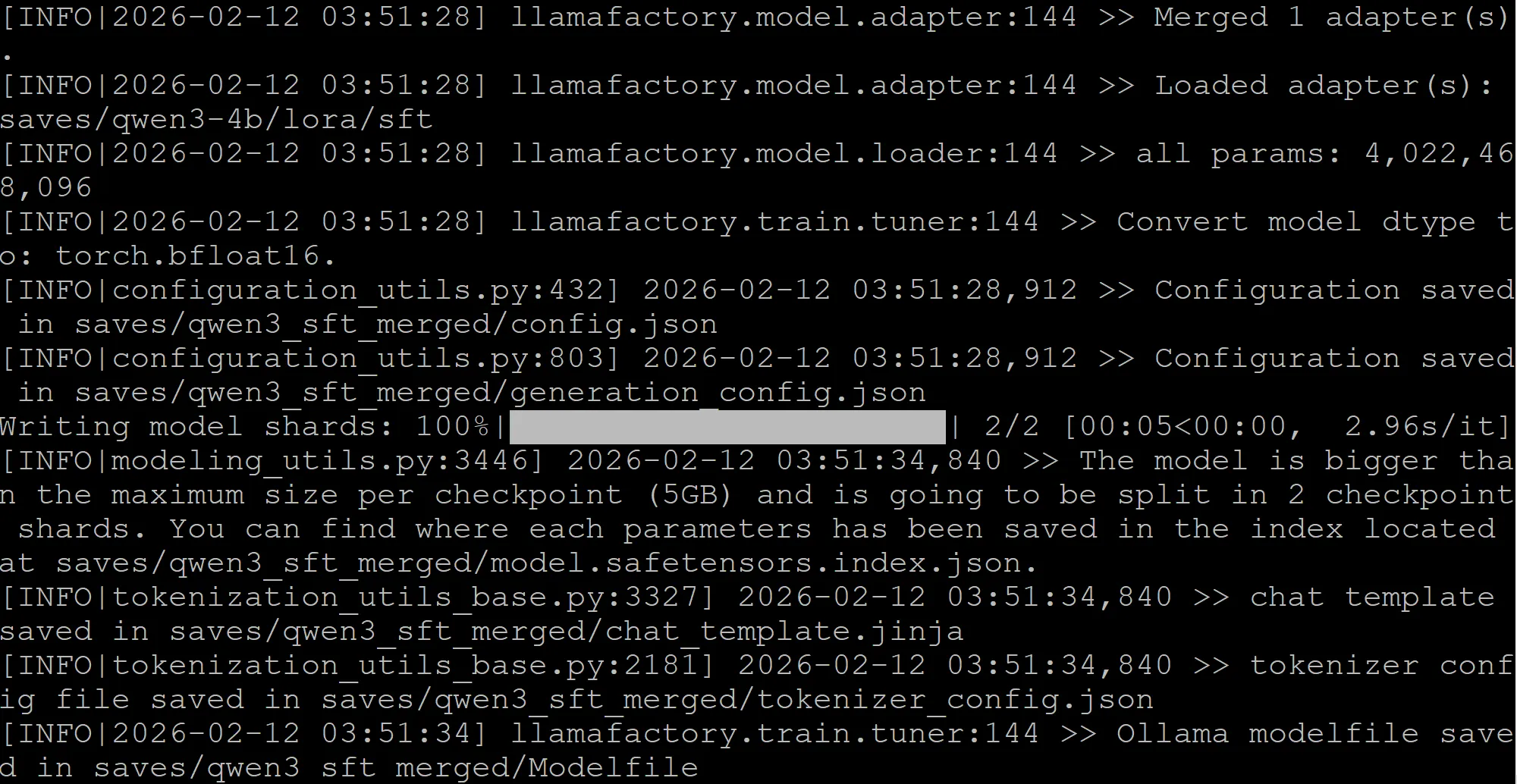
For production use-cases, the pre-trained model and the LoRA adapter need to be merged and exported into a single model. This merged model can be used as a normal Hugging Face model file. LLaMA Factory provides the sample configurations in examples/merge_lora.
Use the following command to export the Qwen3 fine-tuned model:
llamafactory-cli export examples/merge_lora/qwen3_lora_sft.yamlThe result of exporting the fine-tuned model is shown below.
Using LLaMA Factory GUI
LLaMA-Factory also supports zero-code fine-tuning of LLMs through a web UI in the browser.
Use the following command to open it:
llamafactory-cli webuiThe LlamaFactory Web UI offers a streamlined interface for managing machine learning workflows, including training, evaluation, prediction, chatting, and exporting models. Here’s a brief introduction to each tab:
- Train: This tab allows you to select a model and dataset, configure training parameters, and initiate the training process. It’s essential to understand the mandatory and optional parameters to optimize the training setup.
- Evaluate & Predict: After training, you can evaluate the model’s performance and make predictions using this tab. It provides insights into the model’s accuracy and effectiveness on new data.
- Chat: Once training is complete, load the model in the Chat tab to interact with it and see the results of your work. This feature enables real-time communication with the trained model.
- Export: This tab facilitates the export of trained models for deployment or further use. You can save your models in various formats suitable for different applications.
For detailed guidance, we encourage you to refer to the official documentation on the LlamaFactory GitHub repository and the LlamaFactory ReadTheDocs. Additionally, the Wiki LLaMA Board Web UI provides valuable insights into the interface and its functionalities.
Next Steps
- Try different models such as
gpt-ossand other state of the art models. - Experiment with different backends on the fine-tuned model
For more documentation, please visit: https://llamafactory.readthedocs.io/en/latest/
Need help with this playbook?
Run into an issue or have a question? Open a GitHub issue and our team will take a look.