- Generating images with ComfyUI and Z Image Turbo
- Automating Workflows with n8n and Local LLMs
- Building Your First Agent with GAIA
- Fine-tune LLMs with PyTorch and AMD ROCm™ Software
- Getting Started with Ollama
- How to Chat with LLMs in Open WebUI
- LLM Fine-Tuning with LLaMA Factory
- Local LLM Coding with VS Code and Qwen3-Coder
- Optimized LLMs Fine-tuning with Unsloth
- Running and serving LLMs with LM Studio
- Running LLMs with PyTorch and AMD ROCm™ software
- Speech-to-Speech Translation
- Using Lemonade Across CPU, GPU, and NPU
Generating images with ComfyUI and Z Image Turbo
Create stunning AI-generated images using ComfyUI with Z Image Turbo.

Overview
ComfyUI is a powerful, node-based interface for Stable Diffusion and other diffusion models. Unlike traditional text-to-image interfaces with simple prompt boxes, ComfyUI exposes the entire image generation pipeline as a visual graph, giving you fine-grained control over every step from text encoding to latent space manipulation to final decoding.
This tutorial teaches you how to use ComfyUI with the Z Image Turbo model on your GPU to generate high-quality AI images.
What You’ll Learn
- How to launch ComfyUI and load the Z-Image Turbo template
- Understanding diffusion pipeline components
- Generating images and tuning generation parameters
- Saving and sharing workflows
Installing Dependencies
AMD GPU Driver
Update to the latest AMD GPU driver using AMD Software: Adrenalin Edition™.
- Open
AMD Software: Adrenalin Editionfrom your Start menu or system tray. - Navigate to Driver and Software, click Manage Updates.
- If an update is available, follow the prompts to download and install.
AMD GPU Driver
Download and install the latest AMD GPU driver for Linux:
- Visit the AMD Linux Drivers page.
- Follow the installation instructions provided on the download page.
ComfyUI
- Download the Windows ComfyUI v0.10.0 installer from download.comfy.org.
- Choose your hardware setup: Select
AMD ROCm. - Choose where to install ComfyUI: Use the default path or your preferred folder.
- Desktop App Settings: We recommend unselecting “Automatic Updates” to ensure you are using the recommended version of this app.
- Press “Next” to begin installation.
Clone ComfyUI
git clone https://github.com/Comfy-Org/ComfyUI.git(Optional) Checkout a specific version
git checkout v0.19.2Install ComfyUI requirements
With the Python virtual environment activated, run:
cd ComfyUIpip install -r requirements.txtCreate a Virtual Environment
On Linux, open a terminal in the directory of your choice and run the following prompt to create a venv:
sudo apt updatesudo apt install -y python3-venvpython3 -m venv llm-envsource llm-env/bin/activateAMD GPU Driver
Update to the latest AMD GPU driver using AMD Software: Adrenalin Edition™.
- Open
AMD Software: Adrenalin Editionfrom your Start menu or system tray. - Navigate to Driver and Software, click Manage Updates.
- If an update is available, follow the prompts to download and install.
AMD GPU Driver
Download and install the latest AMD GPU driver for Linux:
- Visit the AMD Linux Drivers page.
- Follow the installation instructions provided on the download page.
ROCm
Add the current user to the render and video groups.
sudo usermod -a -G render,video $LOGNAMERestart your system to apply the settings.
sudo rebootInstall ROCm in the created virtual environment.
python -m pip install --upgrade pippython -m pip install --index-url https://repo.amd.com/rocm/whl/gfx1151/ "rocm[libraries,devel]"python -m pip install --upgrade pippython -m pip install --index-url https://repo.amd.com/rocm/whl/gfx1152/ "rocm[libraries,devel]"python -m pip install --upgrade pippython -m pip install --index-url https://repo.amd.com/rocm/whl/gfx1150/ "rocm[libraries,devel]"python -m pip install --upgrade pippython -m pip install --index-url https://repo.amd.com/rocm/whl/gfx120x-all/ "rocm[libraries,devel]"For further installation help, please see this link.
PyTorch
Install PyTorch with AMD ROCm™ software support in the created virtual environment:
python -m pip install --index-url https://repo.amd.com/rocm/whl/gfx1151/ "torch==2.11.0+rocm7.13.0" "torchvision==0.26.0+rocm7.13.0" "torchaudio==2.11.0+rocm7.13.0"python -m pip install --index-url https://repo.amd.com/rocm/whl/gfx1152/ "torch==2.11.0+rocm7.13.0" "torchvision==0.26.0+rocm7.13.0" "torchaudio==2.11.0+rocm7.13.0"python -m pip install --index-url https://repo.amd.com/rocm/whl/gfx1150/ "torch==2.11.0+rocm7.13.0" "torchvision==0.26.0+rocm7.13.0" "torchaudio==2.11.0+rocm7.13.0"See this link for details.
ComfyUI
- Download the Windows ComfyUI v0.10.0 installer from download.comfy.org.
- Choose your hardware setup: Select
AMD ROCm. - Choose where to install ComfyUI: Use the default path or your preferred folder.
- Desktop App Settings: We recommend unselecting “Automatic Updates” to ensure you are using the recommended version of this app.
- Press “Next” to begin installation.
Clone ComfyUI
git clone https://github.com/Comfy-Org/ComfyUI.git(Optional) Checkout a specific version
git checkout v0.19.2Install ComfyUI requirements
With the Python virtual environment activated, run:
cd ComfyUIpip install -r requirements.txtLaunching ComfyUI
To launch ComfyUI on Windows, click the ComfyUI Desktop Launcher which is found on your Desktop. You will see the following page:
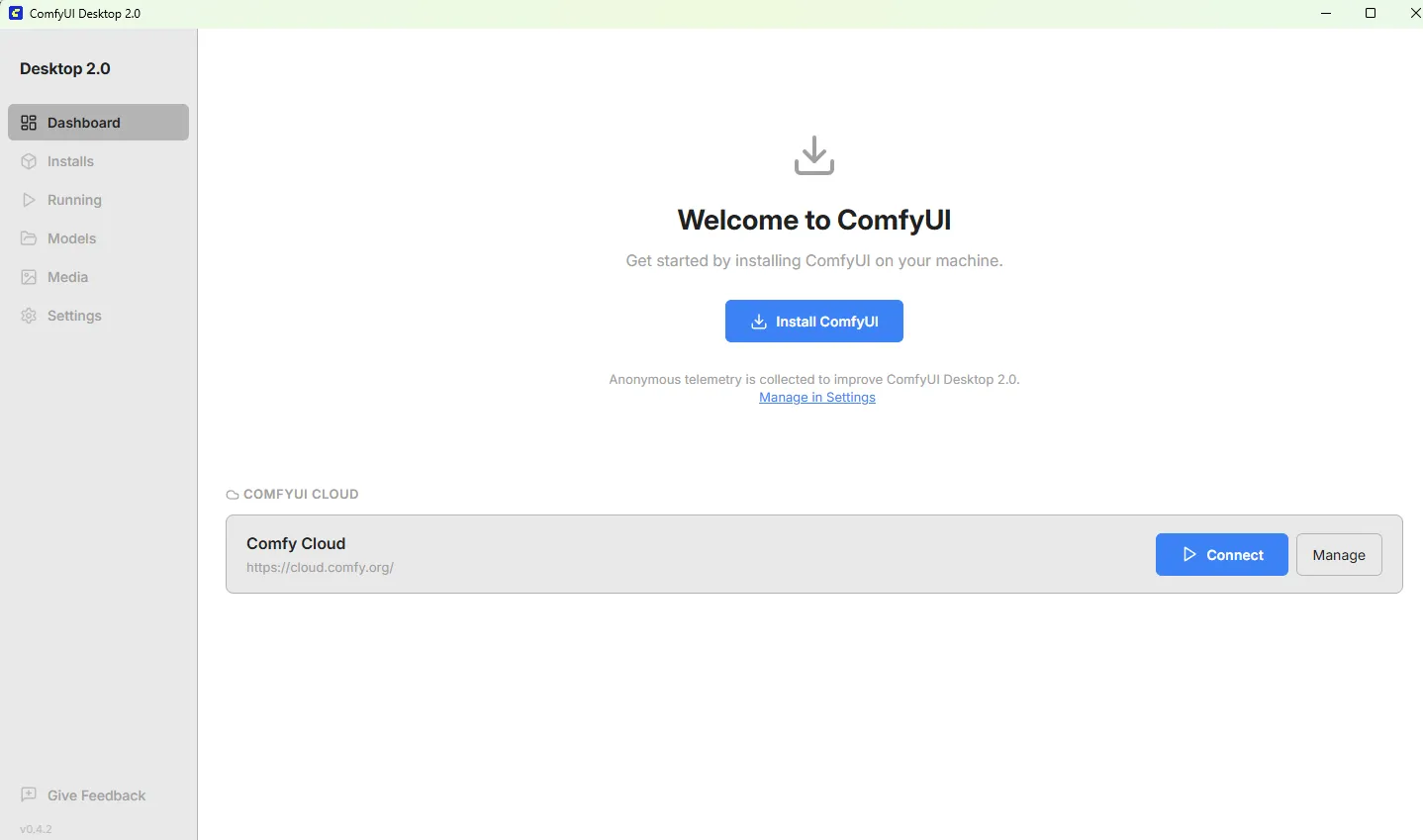
Click Install ComfyUI and follow the steps. Choose AMD as the version and use default install locations. When finished, you should see the following:
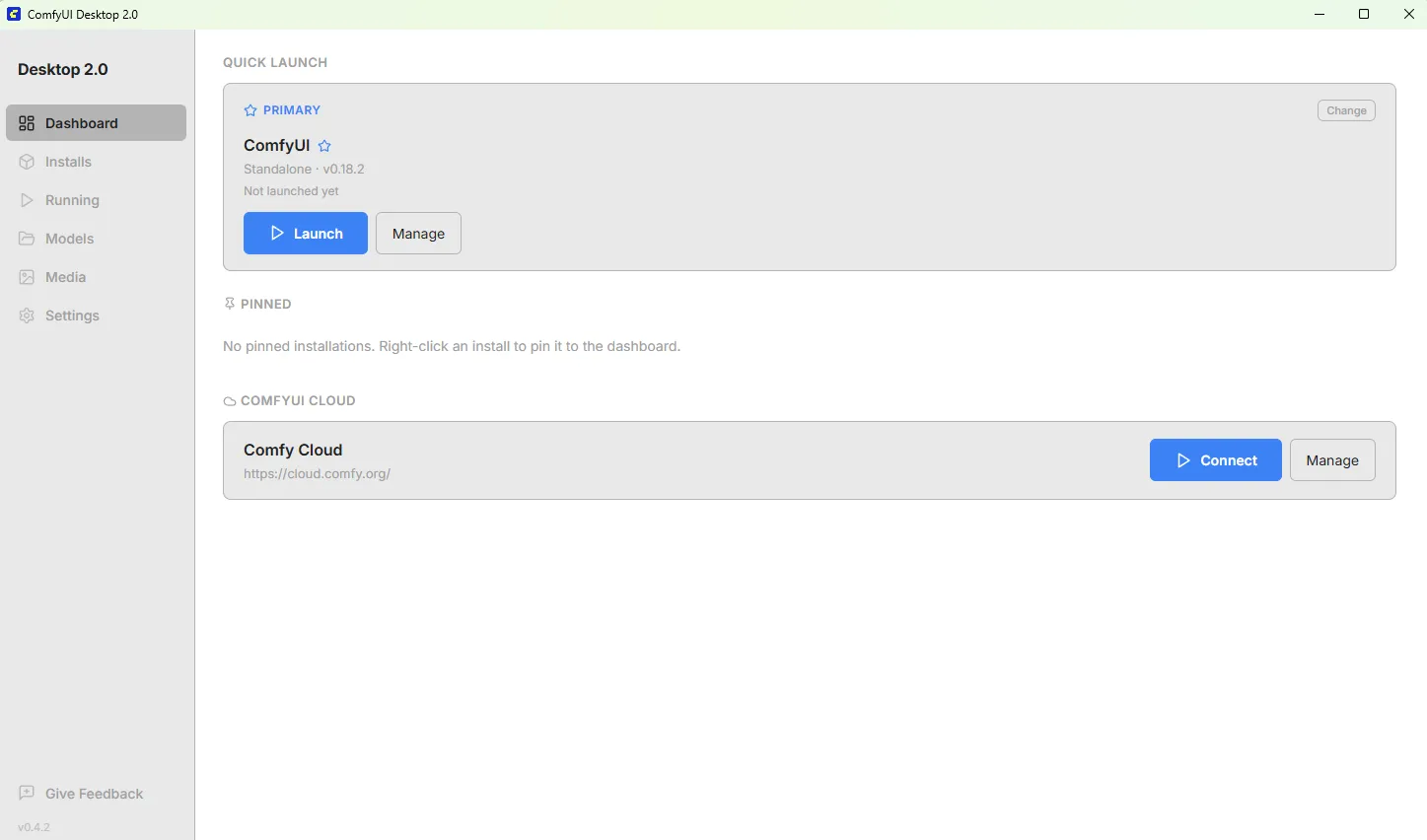
Click the blue Launch button to open ComfyUI in its own window.
To launch ComfyUI on Linux, click the ComfyUI shortcut in the taskbar. It should open by itself in a browser window.
To launch ComfyUI on Windows, simply click the ComfyUI shortcut on your Desktop.
To launch ComfyUI:
- Ensure you are within the ComfyUI directory.
- Run
python3 main.py --use-pytorch-cross-attention
ComfyUI starts a local web server. Open your browser to http://127.0.0.1:8188 to access the interface.
Finding the Z-Image Turbo Template
Before generating images, you need to load the Z-Image Turbo template. Here’s how to find it:
-
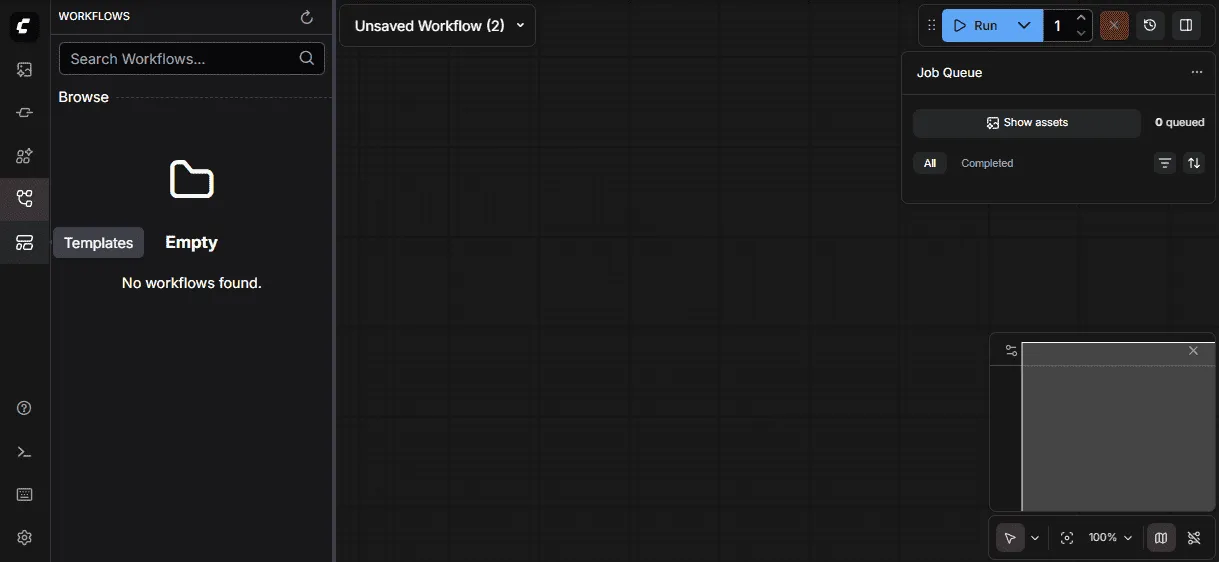
Look at the far left edge of the screen—there’s a vertical toolbar running from top to bottom on the leftmost side of the app.
-
Find the folder icon—in that left toolbar, look for an icon that looks like a folder. When you hover over it, it’s labeled “Templates.”
-
Click the folder icon—this opens the Templates panel.
-
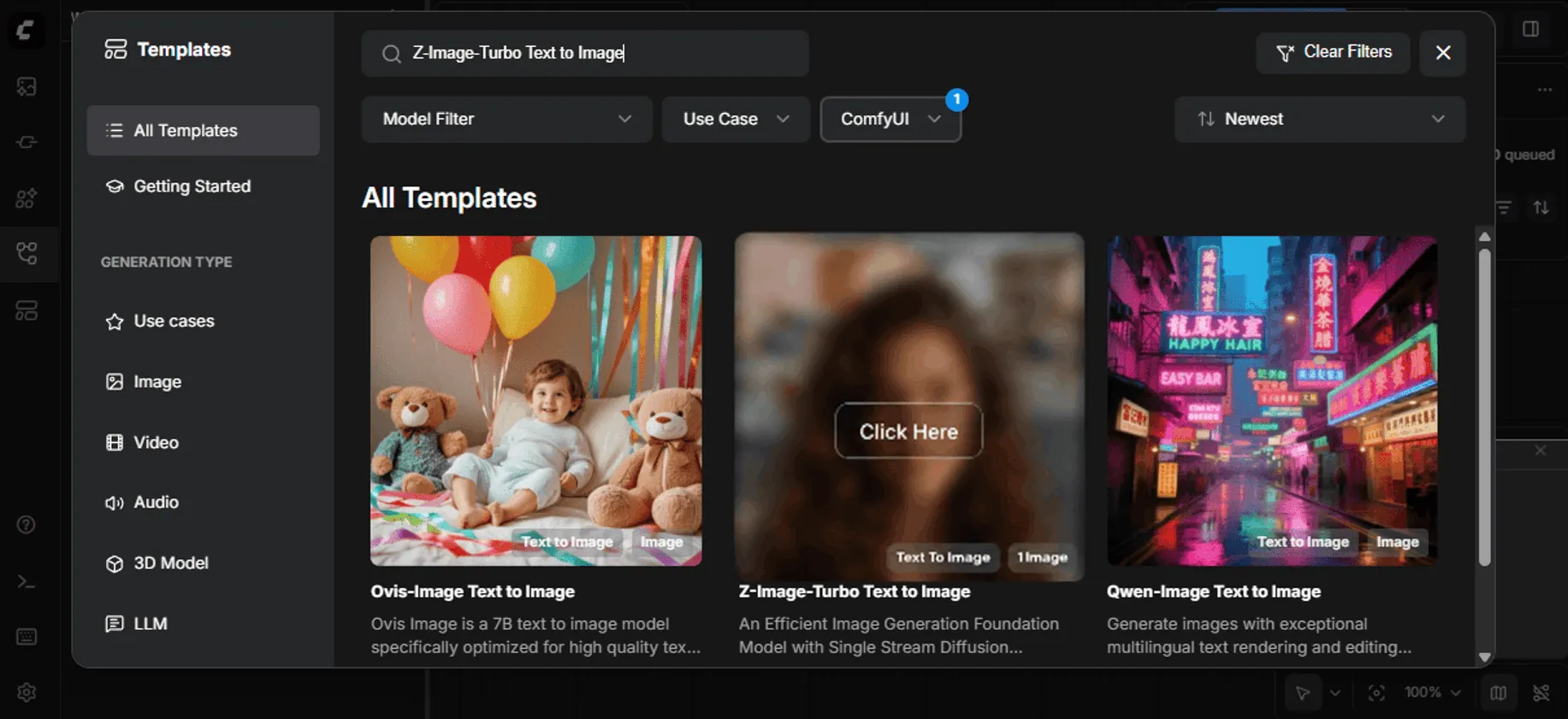
Search for “Z-Image Turbo”—use the search bar or scroll through the available templates to find the Z-Image Turbo Text To Image workflow, then click to load it.
Downloading Models
ComfyUI Models
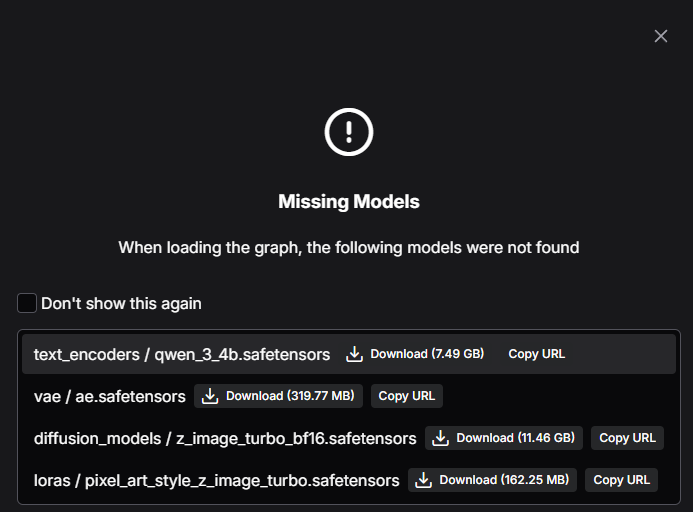
If you previously deleted pre-downloaded ComfyUI models or want to download those for the first time, simply press the Download button on each of the models when prompted that missing models have been detected.
You may need to manually place the model files in the correct locations.
Understanding the Interface
When the Z-Image Turbo template loads, you’ll see a canvas with 2 main nodes. The first node is called ‘Text to Image (Z-Image-Turbo)’, and the second node is for viewing the image.
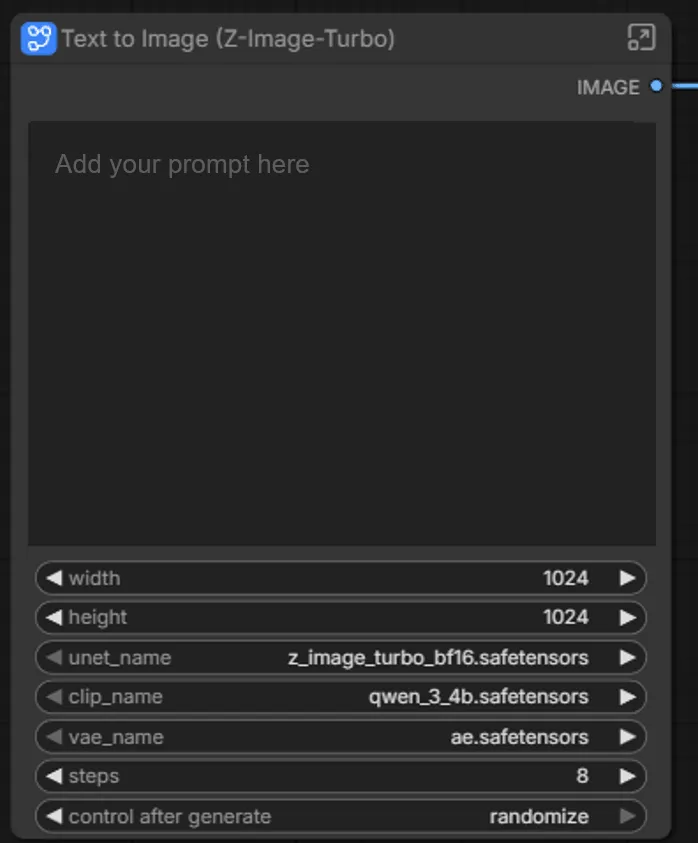
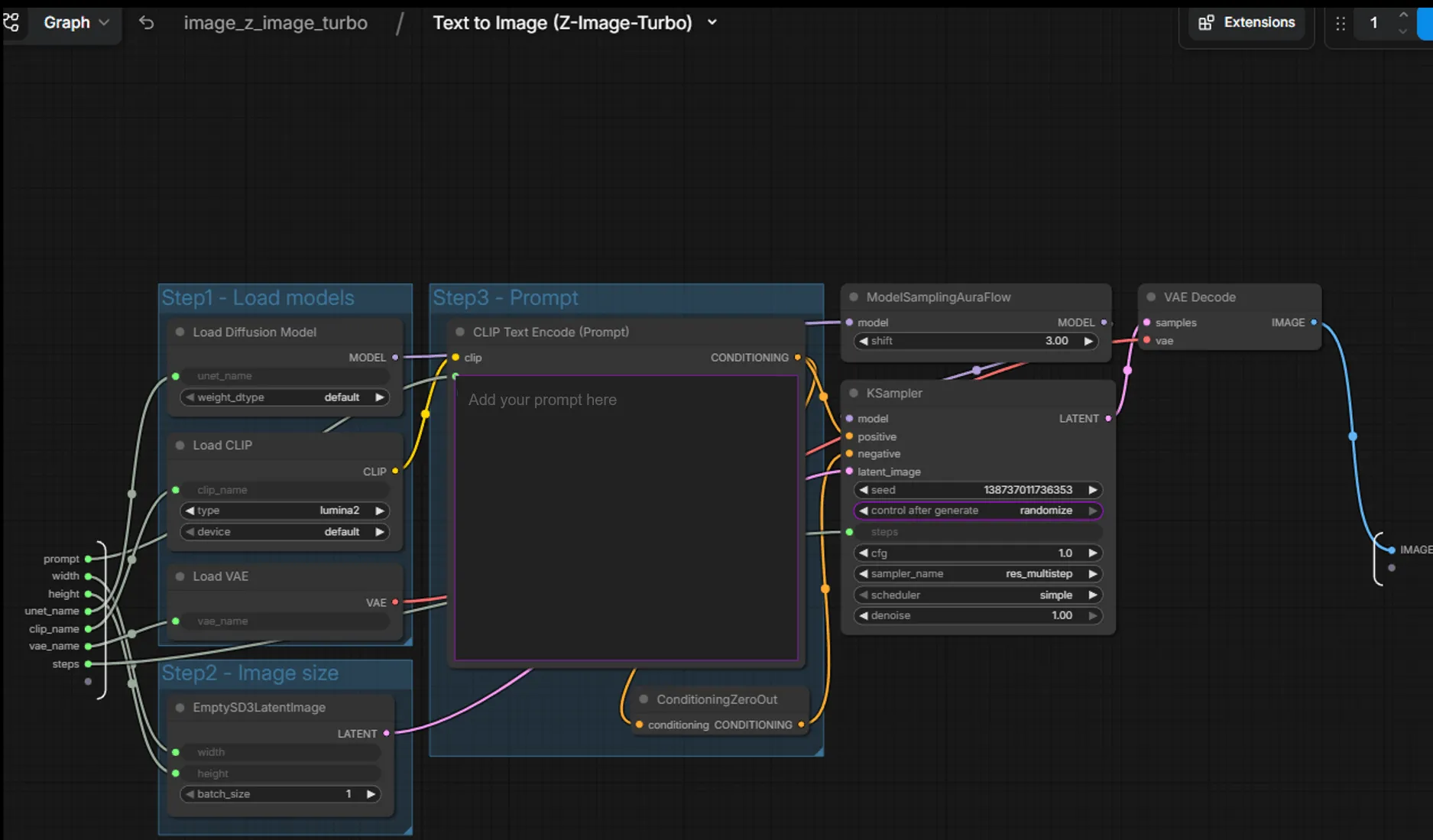
On the Z-Image node, click the top right button to expand the Node and see the subgraph.
Pipeline Components
The Z-Image Turbo workflow uses four key model components that work together:
| Component | Role |
|---|---|
| Text Encoder (Qwen 3 4B) | Converts your text prompt into embeddings the diffusion model understands |
| Diffusion Model (Z-Image Turbo) | The core neural network that iteratively denoises latent representations into images |
| VAE (Variational Autoencoder) | Encodes images to/from latent space (decodes the final latents into pixels) |
| LoRA (optional) | Lightweight adapters that modify style or subject without retraining the base model |
Each node in the workflow corresponds to one of these components. Data flows left-to-right: text → embeddings → guided denoising → latents → final image.
Generating Your First Image
The Z-Image Turbo model is already loaded. To generate an image:
- Enter your prompt in the main Z-Image Node. Be descriptive. Here is an example:
A photorealistic red fox sitting in a snowy forest clearing,morning light filtering through pine trees,detailed fur texture, bokeh background- (Optional): Confirm or tweak any other specific settings within the subgraph.
- Click the blue “Run Workflow” in the right corner (or press
Ctrl+Enter) - Watch the nodes highlight as each step executes
The entire workflow execution should complete in less than 30 seconds. Your generated image appears in the Save Image node and is saved to the output/ folder.
Adjusting Generation Parameters
KSampler Settings
The KSampler node controls the core diffusion process:
| Parameter | What It Controls | Recommended for Z-Image Turbo |
|---|---|---|
| steps | Number of denoising iterations | 4–10 (turbo models are distilled for fewer steps) |
| cfg | Classifier-free guidance scale—how closely to follow the prompt | 1.0–2.0 (turbo models use very low guidance) |
| sampler_name | Denoising algorithm | euler and res_multistep work well for turbo models |
| scheduler | Noise schedule curve | normal or simple |
| seed | Random seed for reproducibility | Set fixed values to iterate on a composition |
Image Size
To adjust output dimensions, find the Empty Latent Image node and modify width and height. Keep dimensions at or below 1024 pixels on the longest side for optimal quality.
ModelSamplingAuraFlow
The ModelSamplingAuraFlow node is a specialized sampling modifier that adjusts how the diffusion process handles noise scheduling. You’ll see this node connected to the model output in the Z-Image Turbo workflow.
| Parameter | What It Controls | Recommended Values |
|---|---|---|
| shift | Adjusts the noise schedule timing—higher values push more detail refinement to later steps | 1.0–4.0 (default is 3.0) |
When to adjust shift:
- Lower values (1.0–2.0): Faster convergence, good for simple compositions
- Higher values (3.0–4.0): More gradual refinement, can improve fine details in complex scenes
The AuraFlow sampling method is specifically designed for flow-matching models like Z-Image Turbo, ensuring proper noise distribution throughout the generation process.
Working with Workflows
Saving Workflows
Click the Save button in the menu to export your workflow as a JSON file. This captures:
- All nodes and their parameters
- All connections between nodes
- Current prompt text
Loading Workflows
Drag a workflow JSON file onto the canvas, or use Load from the menu. The Z-Image Turbo workflow you see by default is loaded from a saved workflow file.
Sharing Workflows
Workflows are self-contained—share the JSON file with colleagues, and they can reproduce your exact setup. This makes ComfyUI excellent for collaborative experimentation.
Next Steps
- Explore LoRA nodes: Apply style or subject adapters without retraining
- Add negative prompts: Connect a second CLIP Text Encode node to the negative conditioning input of KSampler to guide the model away from unwanted features like blur, artifacts, or watermarks
- Build custom workflows: Chain multiple generations, add upscaling, or create image variations
- Browse community workflows: ComfyUI Examples has many ready-to-use workflows
ComfyUI’s strength is experimentation: connect nodes differently, adjust parameters, and observe how each change affects the output. This hands-on exploration builds intuition for how diffusion models work.
For more information, check out the ComfyUI Documentation.
Need help with this playbook?
Run into an issue or have a question? Open a GitHub issue and our team will take a look.