- Generating Images with ComfyUI and Z Image Turbo
- Automating Workflows with n8n and Local LLMs
- Local LLM Coding with VSCode and Qwen3-Coder
- Running and Serving LLMs with LM Studio
- Running LLMs on PyTorch with AMD ROCm™ Software
- Building Custom GPU Kernels with PyTorch and AMD ROCm™
- Building Your First Agent with GAIA
- Chatting with LLMs in Open WebUI
- Clustering Two Ryzen™ AI Halos with RCCL
- Clustering Two Ryzen™ AI Halos with RPC
- Fine-Tuning LLMs with LLaMA Factory
- Fine-Tuning LLMs with PyTorch and AMD ROCm™ Software
- Fine-Tuning LLMs with Unsloth
- Getting Started with Lemonade
- Getting Started with Ollama
- Getting Started with vLLM
- Local Computer Vision with AMD Ryzen™ AI NPU
- Real-Time Speech-to-Speech Translation
- Remote Development with AMD Sync
- Running OpenClaw Locally with Lemonade Server
Local LLM Coding with VSCode and Qwen3-Coder
Use VS Code with locally-running Qwen3-Coder for private code assistance.
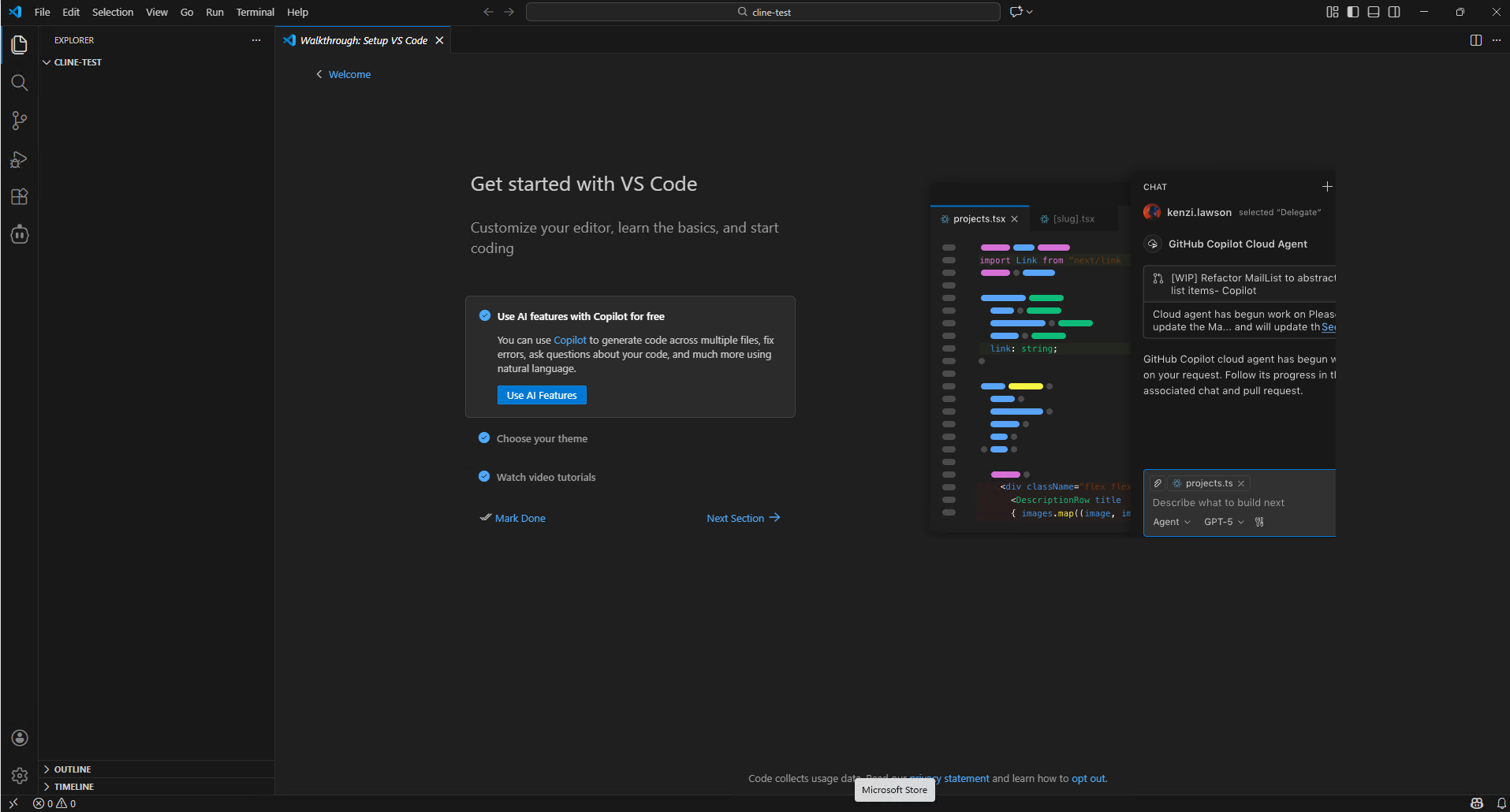
Overview
Coding agents are powerful tools that empower developers through collaboration with AI agents backed by Large Language Models (LLMs). They can be embedded into the development environment, such as the terminal or VS Code, allowing seamless integration into a developer’s workflow.
This tutorial demonstrates how to use Cline, VS Code, and LM Studio to run a coding agent entirely on your local machine.
What You’ll Learn
- How to run VS Code with the Cline coding agent to aid in software engineering tasks.
- How to configure Cline to communicate with LM Studio for local inference of coding agents.
- How to use local coding agents to solve real-world software engineering tasks.
Setting the Memory Configuration
For the Ryzen AI Halo, the dedicated GPU memory defaults to 64GB, which is sufficient for most workloads. For larger models or longer contexts, increasing this to 96GB may help. To adjust, open AMD Software: Adrenalin Edition™ and navigate to Performance → Tuning → AMD Variable Graphics Memory. Reboot for the changes to take effect.
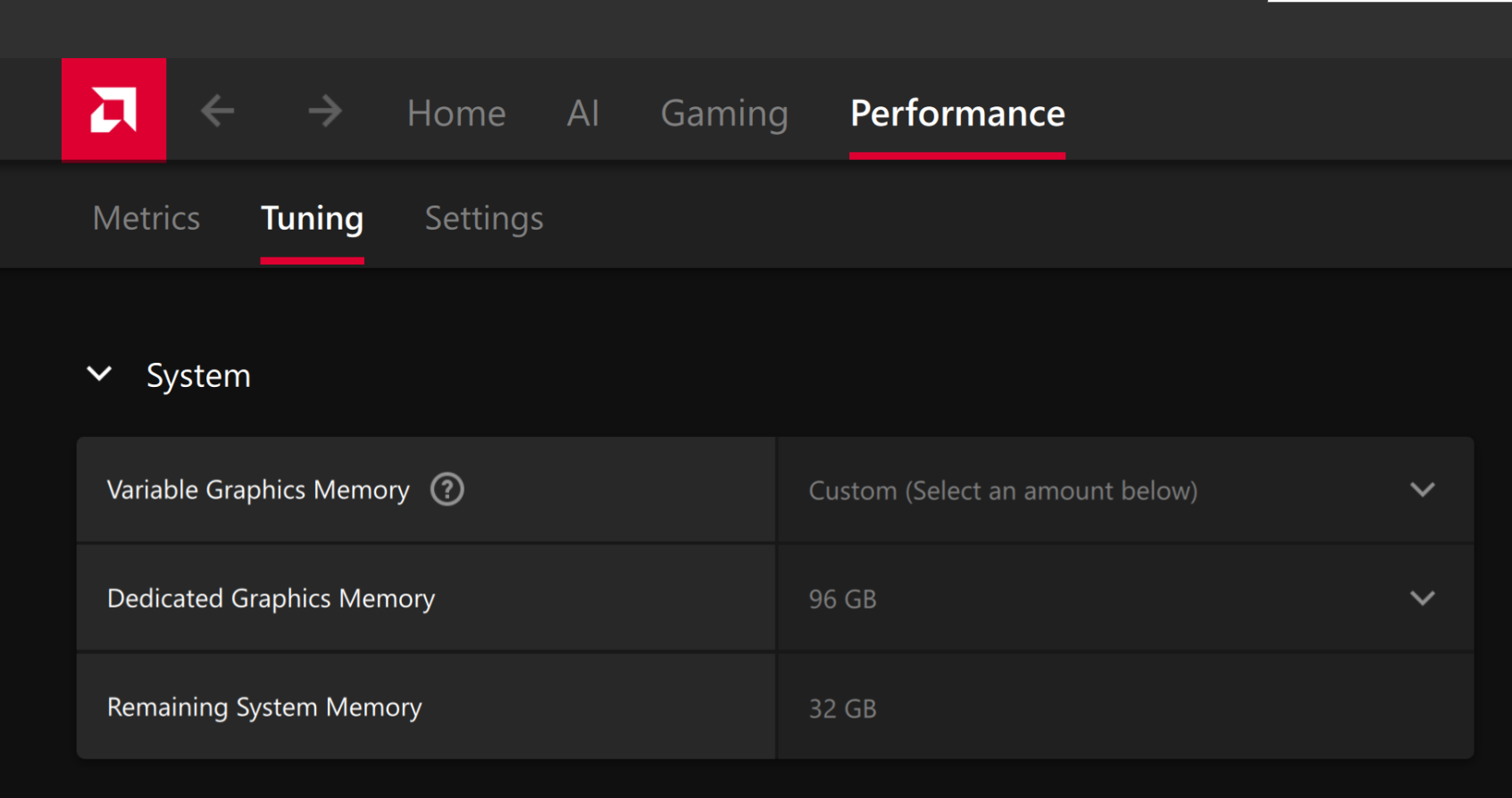
To change the dedicated GPU memory value, open AMD Software: Adrenalin Edition™ and navigate to Performance → Tuning → AMD Variable Graphics Memory. Reboot for the changes to take effect.
On Linux, to run larger models, increase the shared memory pool available to the GPU. This might involve setting the BIOS dedicated GPU memory to the minimum, so that the shared memory pool can be maximized.
For the AMD Ryzen™ AI Halo, the default is 96GB shared. To modify this, open the AMD Ryzen™ AI Developer Center and go to the Settings tab. Under Graphics Performance Settings, increase the Shared Video Memory slider, then click Apply Changes and reboot for the changes to take effect.
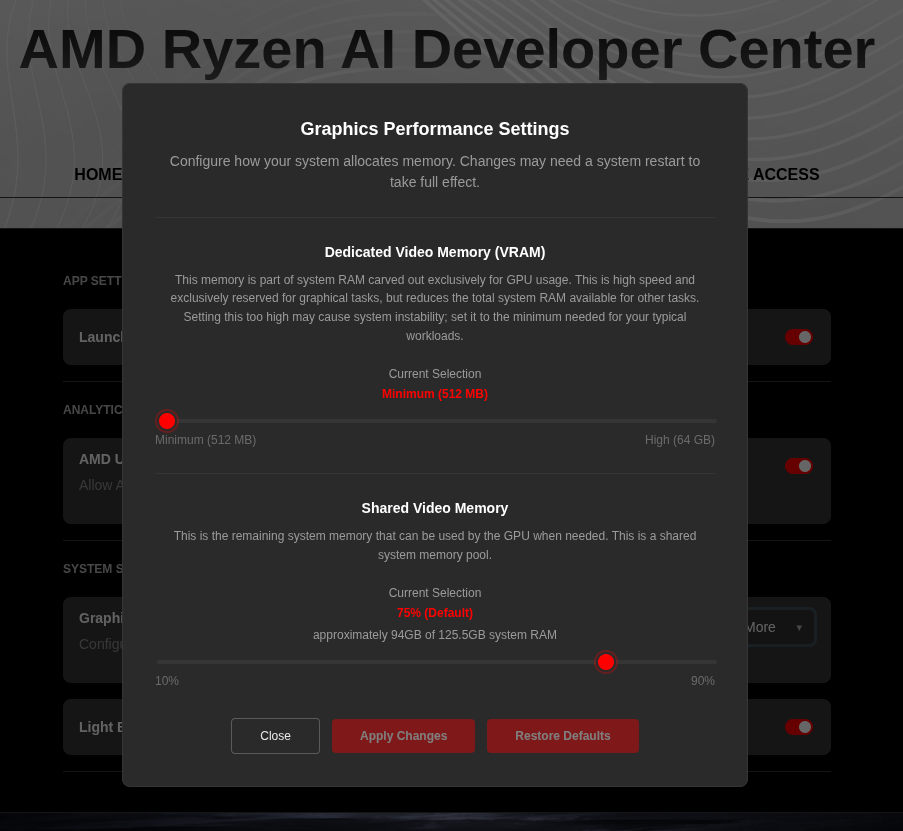
Increase the shared memory pool by changing the kernel’s Translation Table Manager (TTM) page setting. AMD recommends setting the minimum dedicated VRAM in the BIOS (0.5 GB) so the maximum amount is available as shared memory.
- Install the
pipxutility and add the path for pipx-installed wheels to the system search path:
sudo apt install pipxpipx ensurepath- Install the
amd-debug-toolswheel from PyPI:
pipx install amd-debug-tools- Query the current shared memory settings:
amd-ttm- Increase the shared memory allocation (units in GB):
amd-ttm --set <NUM>- Reboot for the changes to take effect.
Check for Software Updates
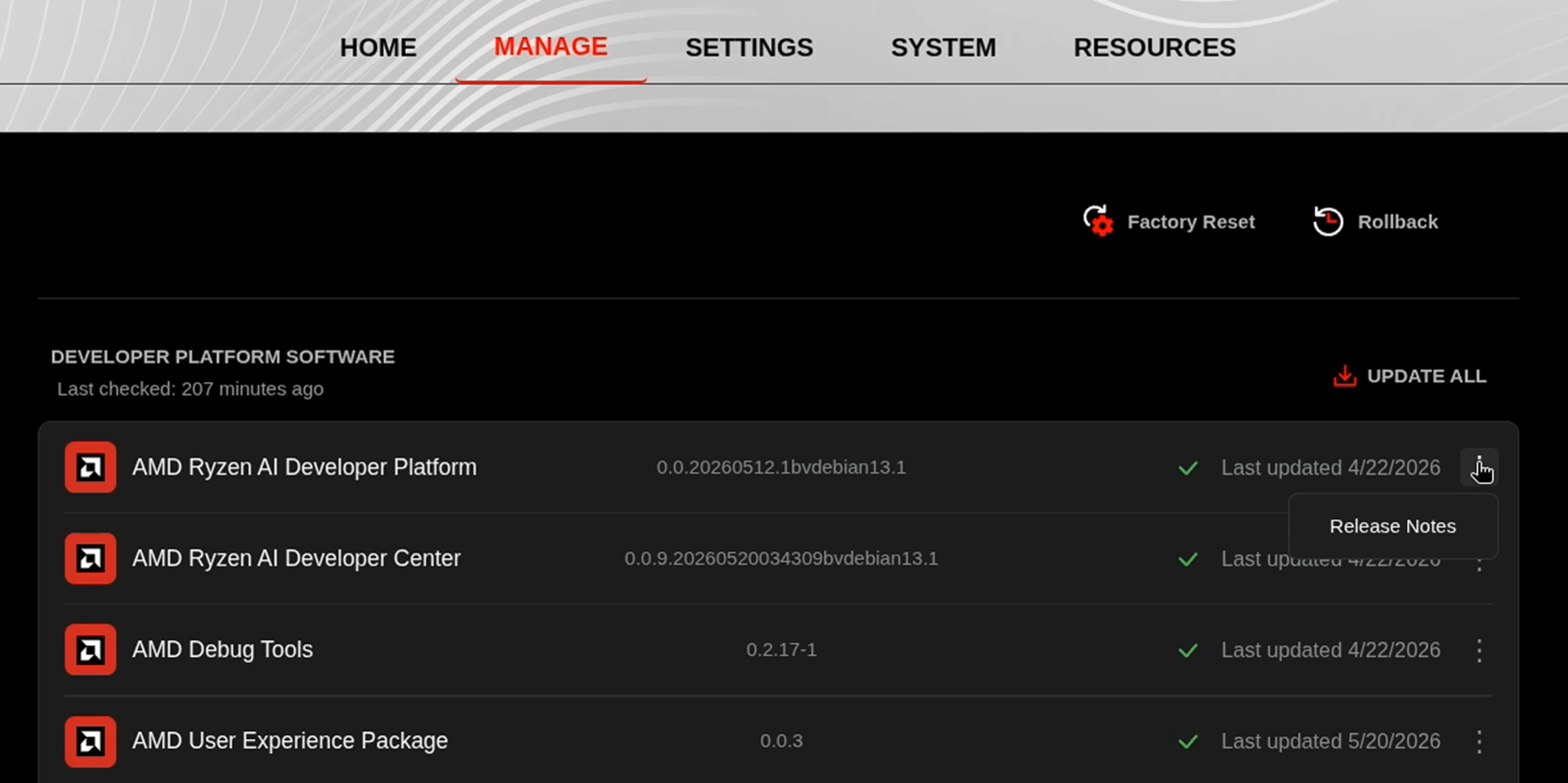
Before starting, ensure your Ryzen AI Halo has the latest software installed. Open the AMD Ryzen™ AI Developer Center and check for available updates, both to the app itself and additional software.
Go to the Updates tab. If updates are available, install them and reboot before continuing.
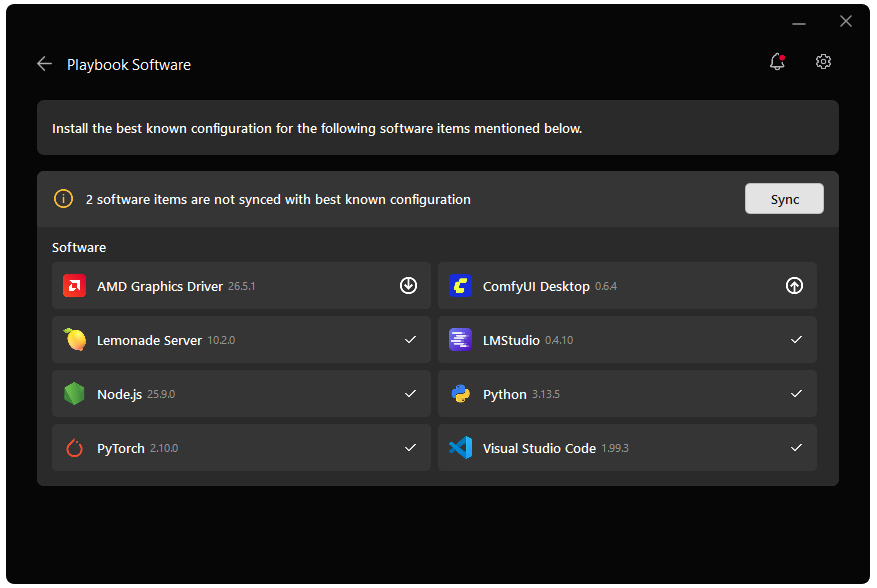
Go to the Manage tab. If updates are available, install them and reboot before continuing.
Installing Software Prerequisites
LM Studio
LM Studio can be installed from the AMD Ryzen™ AI Developer Center. Go to the Updates tab and install LM Studio if it is not already present.
To allow LM Studio to see the pre-installed models, navigate to Settings > General > Models Directory. Then change the path to C:\Users\Public\models
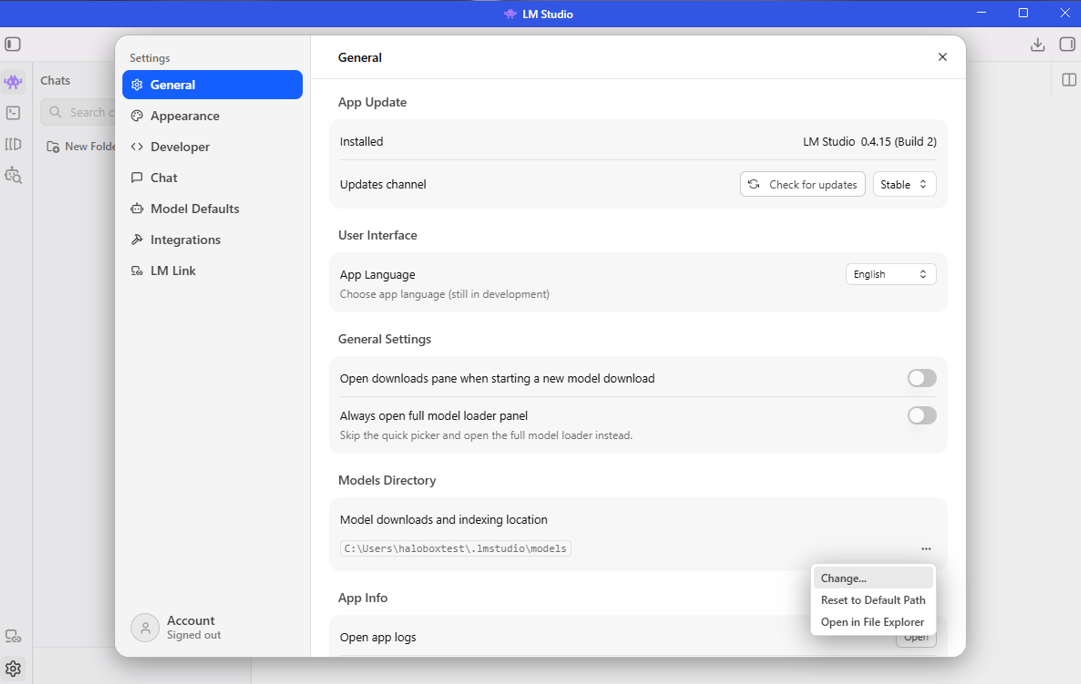
- Download the installer from here: https://lmstudio.ai/download
- Install.
- Download the appimage from here: https://lmstudio.ai/download?os=linux
- run
sudo apt install libfuse2 - run
cd ~/Downloads - run
chmod +x LM-Studio-*.AppImage - run
./LM-Studio-*.AppImage
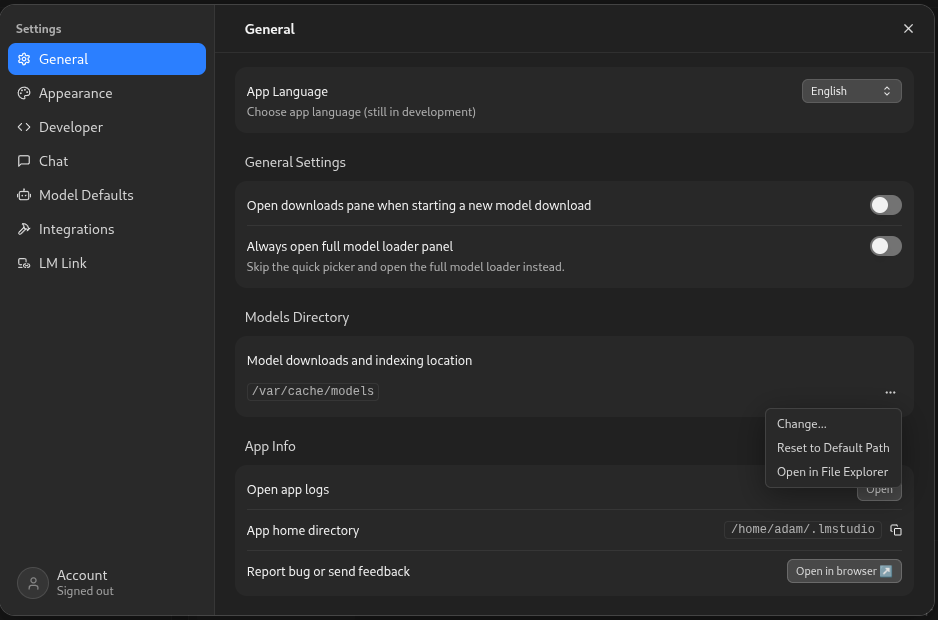
To allow LM Studio to see the pre-installed models, navigate to Settings > General > Models Directory. Then change the path to /var/cache/models.
Visual Studio Code
VS Code can be installed from the AMD Ryzen™ AI Developer Center. Go to the Updates tab and install VS Code if it is not already present.
VS Code can be installed from the AMD Ryzen™ AI Developer Center. Go to the Manage tab and install VS Code if it is not already present.
- Download the Windows installation executable from: https://update.code.visualstudio.com/1.108.2/win32-x64-user/stable.
- Click on the downloaded file
VSCodeUserSetup-x64-1.108.2.exeto install VS Code.
- Download the Debian installation package from: https://update.code.visualstudio.com/1.108.2/linux-deb-x64/stable.
- Click on the downloaded file
code_1.108.2-1769004815_amd64.debto install VS Code.
Launch and Configure LM Studio
We will use LM Studio to serve the LLM powering the coding agent.
- In the search bar, search for
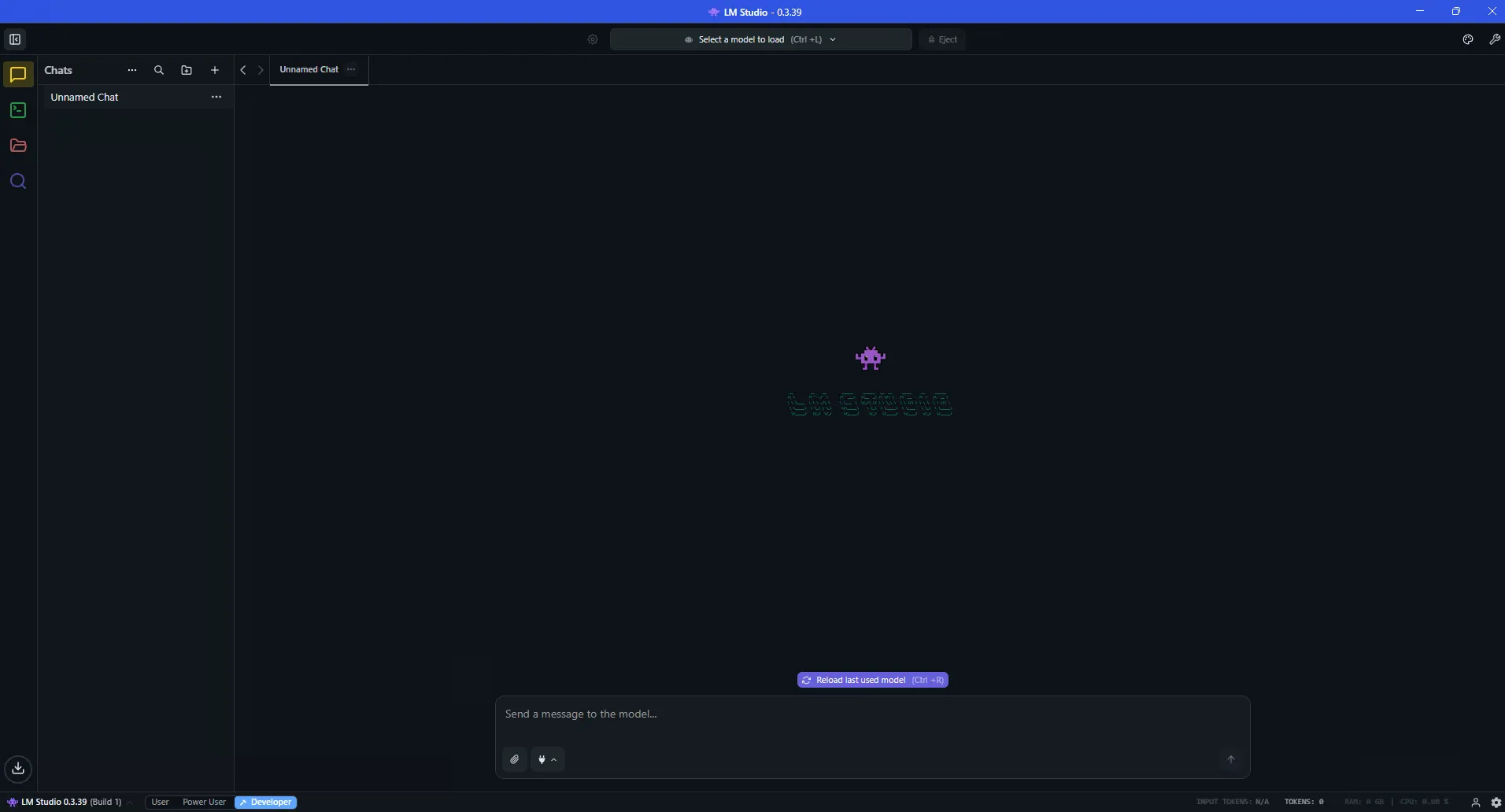
LM Studioand launch the application. You will be greeted by the following page.
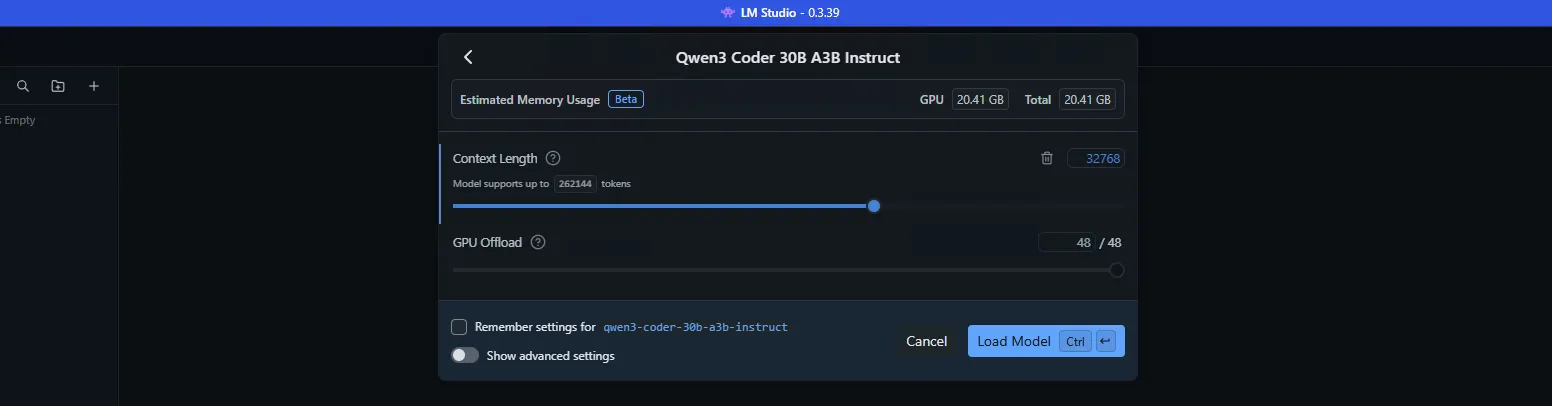
Next, we must load the LLM on the system. We are going to use the Qwen3-Coder-30B-A3B model with a large context length. (Use the Model tab to install it if you haven’t already).
- Click on the search bar on the top of the LM Studio window or press
CTRL+L. Click the switchManually choose model load parametersand then click on the Qwen3-Coder-30B-A3B model. - Change the context length from
4096to32768, and make sureGPU Offloadis at the max. Then, clickLoad Model

We use a large context length so that the agent can process large codebases and remember changes that have been made.
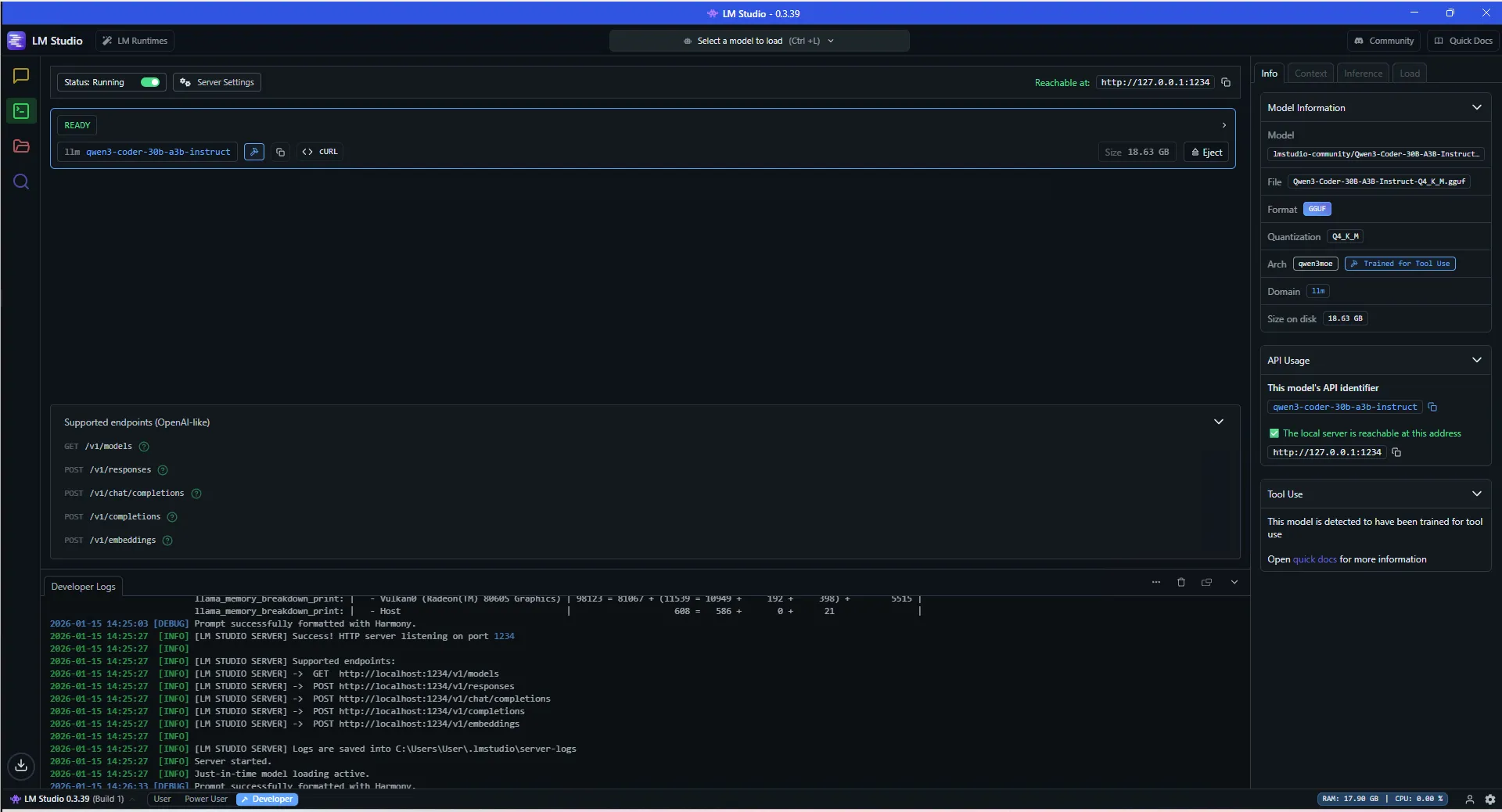
Next, we need to enable the LM Studio Server.
- Click the Developer tab or press
CTRL+2in LM Studio on the left. - Check the status toggle and ensure it is set to
Running.
Launch and Configure VS Code
We will install the Cline Extension in VS Code and connect it to the LM Studio server we just made.
- In the search bar, search for
VS Codeand launch the application. - Click on the
Extensionsicon on the left column of VS Code and search forCline. Then, click theInstallbutton.
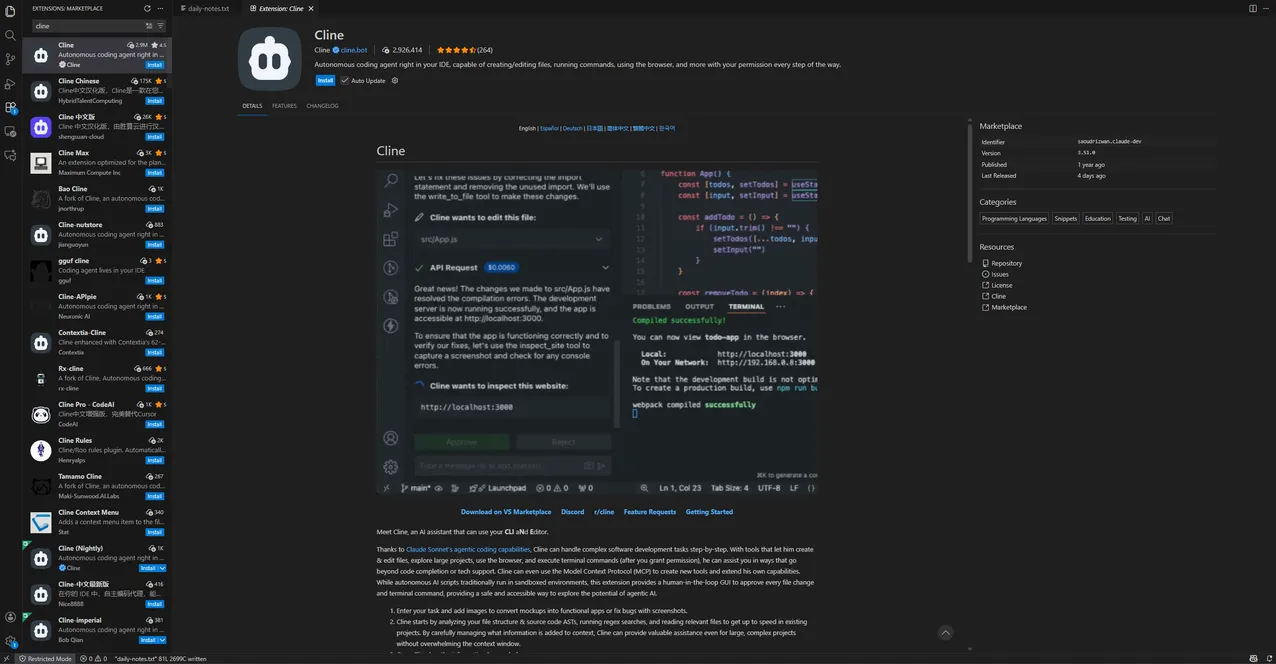
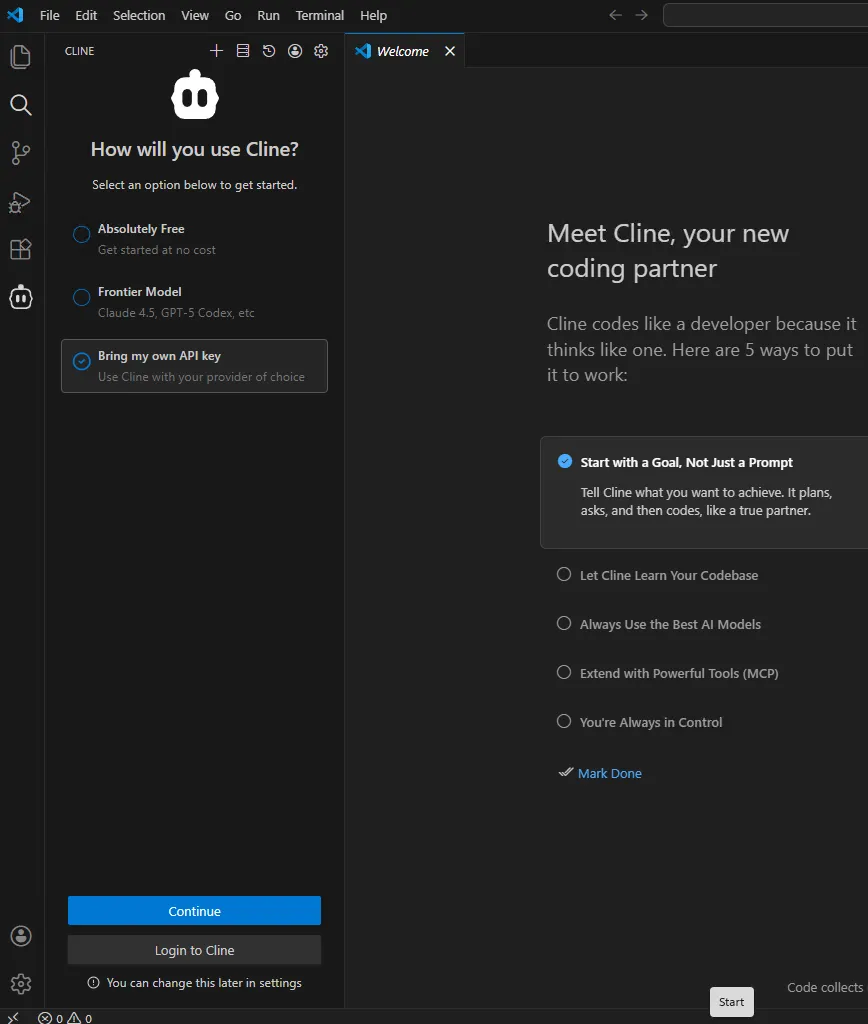
- A Cline icon should be present on the left. Click on that to open Cline. There will be a window asking
How will you use Cline?As we are going to be using a local LLM running via LM Studio, selectBring my own API Keyand hitContinue.
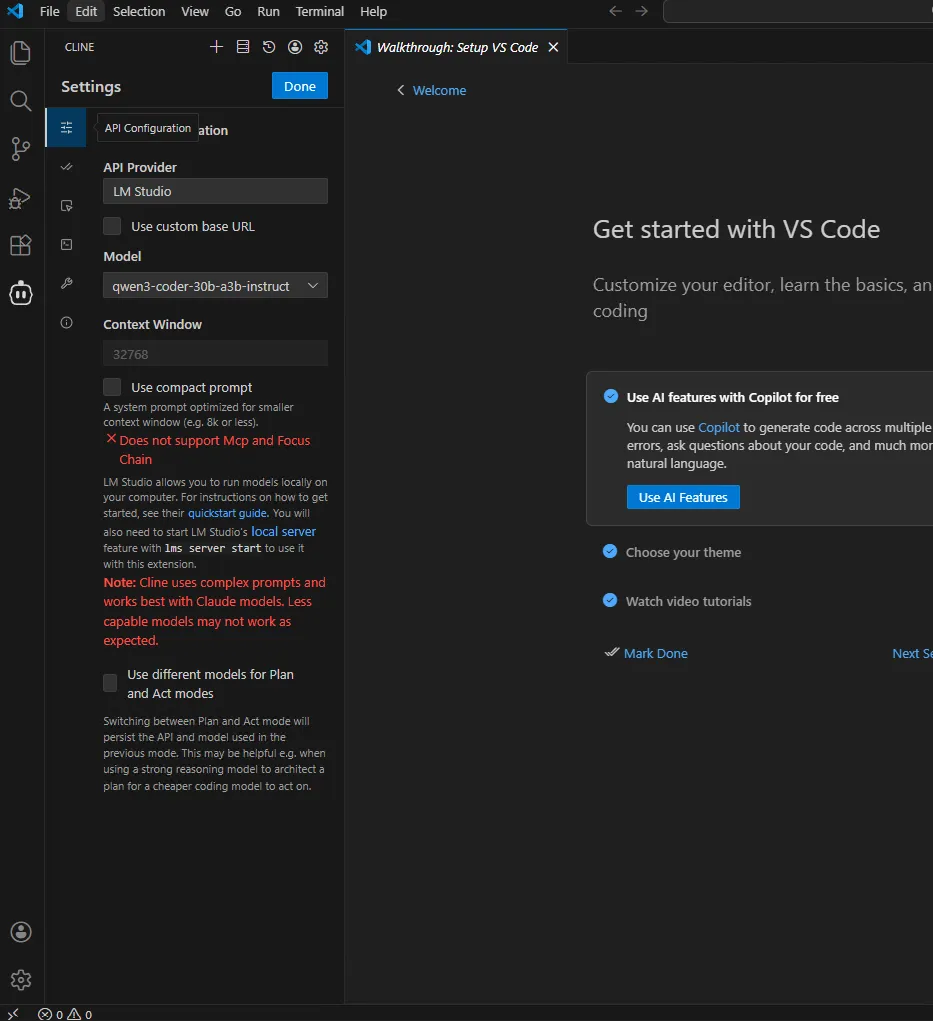
Next, we need to configure Cline to communicate with the LM Studio server that we set up.
- Set the API Provider to
LM Studioand the model toQwen3-Coder-30B-A3B-GGUF.
Creating your first project
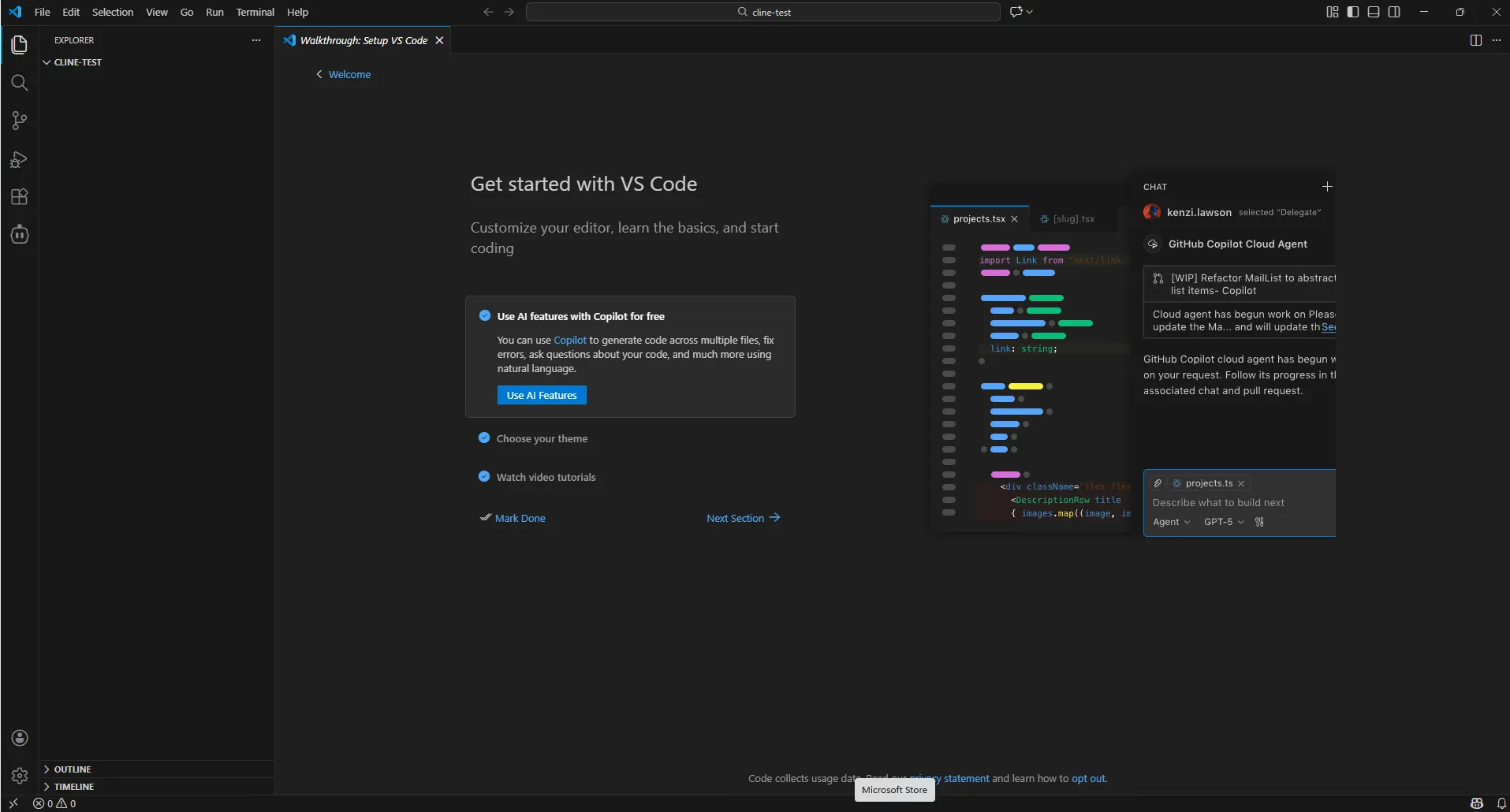
Let’s use our local agent to create a website! Open VSCode to a directory of your choice where Cline will create the files.
- To do this, go to
File -> Open Folderon the top-left of VS Code and choose a folder likeDocuments.
Now we are ready to prompt the local coding agent.
- Click on the Cline extension on the left column and enter a prompt to kickoff the agent. As an example, let’s use the following prompt:
Create a website showcasing the ability to run local large-language models on an AMD device.The agent will then start to create files according to the prompt. As a user, you can watch the code be generated in VS Code as shown below. You may have to click Save each time Cline wants to create a file.
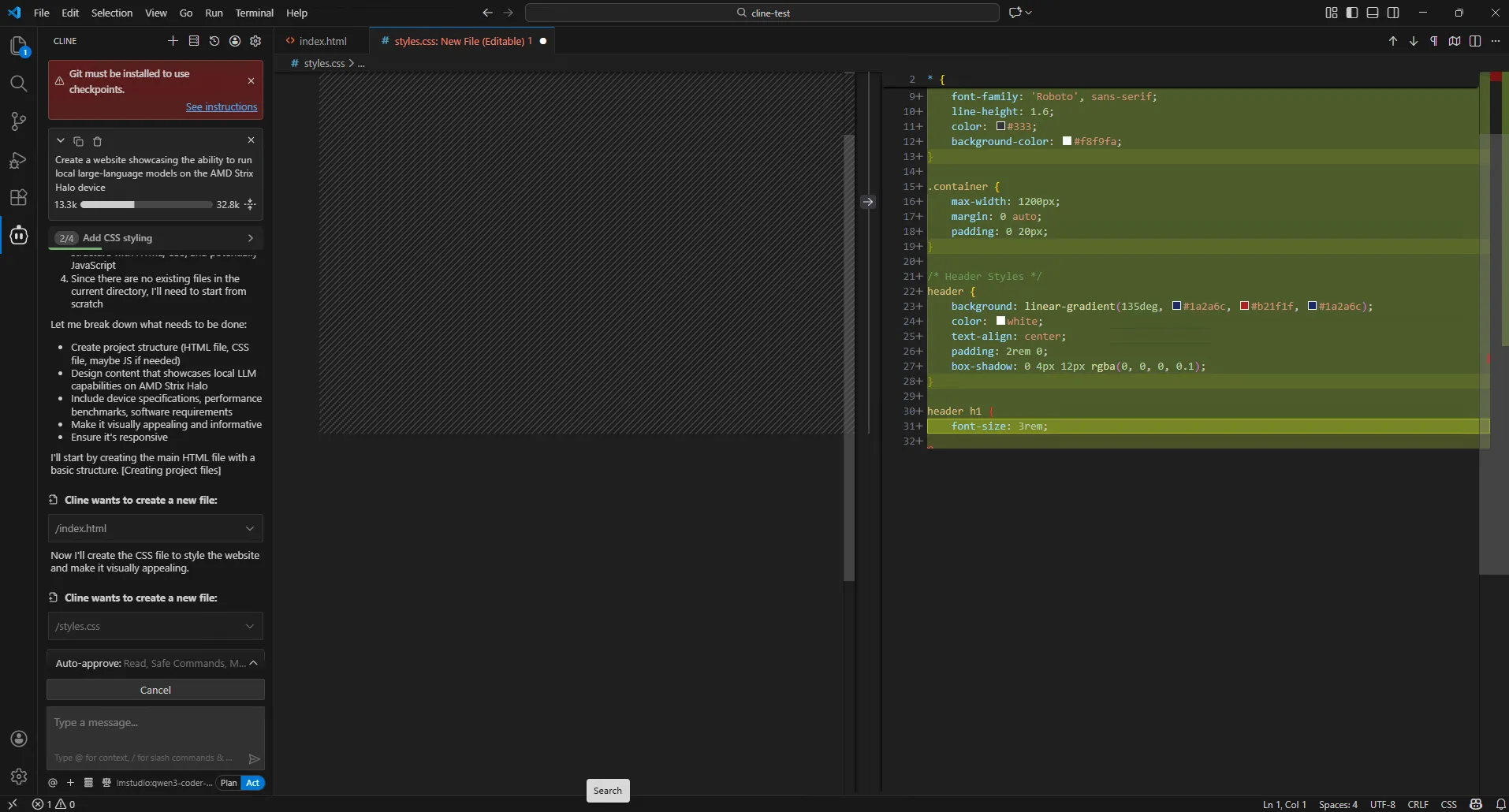
After generating the software, the agent is complete and you can run the application. In this case, the agent wrote to three files: index.html, script.js, and styles.css. By simply double clicking on the HTML file we can load and interact with the generated website.
Next Steps
After generating the website, you can continue to work with Cline to improve the website. Two possible improvements are:
- Documentation: Prompting the agent with
Add a READMEis all that is needed for the agent to generate aREADME.mdfile that documents the website. - Animation: Prompt the model with
Add an animation that visually represents a large language model running on a laptop.to generate an animation to the website.
We encourage the reader to try to generate other applications using this setup. Below are some fun examples we have tried:
- Retro Arcade Games: Try some other prompts. It can also be fun for the agent to create retro-style games in Python using the
PyGamepackage with the following prompt:
Create a simple pong game using the PyGame python package.- Data Analysis: One area where coding agents are particularly useful is that of scripting and data analysis. This is a prompt to showcase the local model’s ability to generate data analysis software for stock price visualization:
Write a Python script that fetches daily price data for AMD (ticker: AMD) from an online API (use the yfinance library so no API key is needed). Loads the last 365 calendar days of data into a Pandas DataFrame. Computes 20-day and 50-day simple moving averages of the closing price. Store the data in a sqlite database and when the script is first run check to see if the sqlite database contains the requested data, if not, fetch it from the API. Plots a single matplotlib line chart with: Close, SMA-20, and SMA-50. Include a title, axis labels, and a legend. Saves the figure to amd_price_sma.png in the current directory and prints the path when done. Allow the user to pass in command line arguments for the total time period of data, the time period for the simple moving average to calculate, as well as to provide different tickers.Resources
Below are some additional resources to learn more about Coding Agents, Cline, and running workloads on
- More information about the AMD LM Studio partnership and integration: https://www.amd.com/en/ecosystem/isv/consumer-partners/lm-studio.html
- AMD Blog walking through running Cline on AMD Ryzen™ AI and Radeon™ Graphics Cards: https://www.amd.com/en/blogs/2025/how-to-vibe-coding-locally-with-amd-ryzen-ai-and-radeon.html
- Cline Blog on running coding agents locally on AI PCs: https://cline.bot/blog/local-models-amd
Need help with this playbook?
Run into an issue or have a question? Open a GitHub issue and our team will take a look.